

If you want to go deeper on ArcGIS Pro project management, data organization, and building efficient workflows, check out our ArcGIS Pro training courses — including upcoming ArcGIS Pro Bootcamps in cities across the country and live-online.
Most new to intermediate ArcGIS Pro users carry an invisible assumption into every project: that an .aprx file works roughly like an .mxd file. One project, one map, one layout. Open it up, do your work, save, done. It feels familiar enough that nobody ever stops to question it.
But that assumption quietly causes problems at every step — duplicate layers, disorganized files, outputs that are harder to manage than they should be. The fix isn’t learning more tools. It’s understanding what a project actually is.
The ArcMap Hangover
For anyone who spent years in ArcMap, switching to ArcGIS Pro was a significant adjustment. The interface was different, the workflows shifted, and there was a learning curve that took real time to work through. Most people got there — but they carried one habit with them that never got examined.
In ArcMap, your .mxd was your map. It held your layers, your symbology, your layout, your annotation — everything. You saved it, you sent it, you archived it. One file, one map, one deliverable. That mental model was deeply ingrained after years of use.
ArcGIS Pro introduced the .aprx format and called it a “project,” which sounds like a reasonable equivalent. So most people treated it like one. Open a new project, add your data, build your layout, save. Repeat for the next job.
The problem is that a project in ArcGIS Pro is architecturally something very different from an MXD — and treating it like a direct replacement means leaving most of its value on the table.
What a Project Actually Is
The key shift is this: an ArcGIS Pro project is a workspace, not a map.
Think of it less like a single document and more like a binder. The binder itself doesn’t contain your data — it contains references to your data, along with an organized collection of the maps, scenes, layouts, and tools you’re using to work with that data. You can have multiple maps in the same binder. Multiple layouts. Multiple toolboxes. All organized in one place, all pointing to the same underlying data sources.
The .aprx file stores:
- Maps and scenes — as many as you need
- Layouts — one for each output type or audience
- Toolboxes and tasks — custom tools and automated workflows
- Connections — to folders, databases, and servers
What it does not store is your actual data. Your shapefiles, geodatabases, rasters — those live on disk in their own locations. The project just knows where to find them. This is an important distinction, especially when you’re moving projects between machines or sharing work with a colleague. The project is portable; the data needs to travel with it or be accessible from the new location.

Maps and Scenes: More Than One Per Project
Here’s where most intermediate users have their first “aha” moment: you can — and often should — have more than one map inside a single project.
Right-click the Maps folder in the Catalog pane and you’ll see the option to insert a new map. Most people have never clicked it intentionally. But once you start using multiple maps in a project, you’ll wonder how you worked without them.
Some practical examples of when this makes sense:
Reference map vs. working map. Keep a clean, symbolized reference map that you use for final outputs, and a separate working map where you’re doing analysis, running tools, and experimenting with data. Your reference map stays clean; your working map can be messy.
Different coordinate systems for different outputs. If you’re producing a statewide overview and a detailed local inset, you may want each in a different projection. Rather than constantly reprojecting on-the-fly in a single map, give each output its own map with the appropriate coordinate system set.
Separating analysis from cartography. Analytical layers — buffers, selections, intermediate outputs — don’t need to clutter your cartographic map. Keep them in a dedicated analysis map and pull only the finished results into your final map.
Using multiple maps within a project can also support collaboration. If two people are working on different aspects of the same project, the map structure gives each person a clear area of ownership — though it’s worth noting that two users cannot safely edit the same .aprx simultaneously. The typical workflow is for one person to own the project file, or for collaborators to work from copies and coordinate changes, while sharing the underlying data sources.
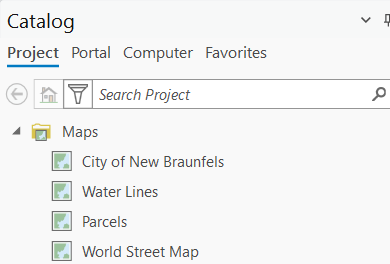
Layouts: One Per Output, Not One Per Project
The same logic applies to layouts. A project can hold multiple layouts simultaneously, and building them out intentionally is one of the highest-leverage organizational habits you can develop.
Before we get to the “how,” it helps to understand what a layout actually is. A layout in ArcGIS Pro doesn’t contain a map — it references one. When you insert a map frame into a layout, you’re creating a window that looks into a specific map. If you update the map, the layout reflects those changes automatically. The map and the layout are separate objects that stay in sync.
That separation opens up some powerful options:
Multiple output sizes in one project. Need a letter-size PDF for a report and a 36×48 poster for the wall? Create two layouts, both referencing the same map. Change the symbology once, both outputs update.
Draft vs. final layouts. Keep a draft layout with extra annotation, data source notes, and working elements, and a separate clean layout formatted for delivery. No more duplicating files to maintain different versions.
Different audiences, different designs. A technical layout for internal review and a simplified, designed layout for a public presentation can coexist in the same project, both drawing from the same data.

A Project Structure That Actually Works
With all of this in mind, here’s a practical framework you can adopt for your own work. This isn’t the only way to organize a project — but it’s a solid starting point that scales well.
One project per client engagement or major deliverable. Don’t create a new project every time you start a new task for the same client. Build one project for the engagement and let it grow intentionally. Add maps and layouts as the work evolves.
Name your maps descriptively. “Map” and “Map1” tell you nothing six months later. Use names like “Existing Conditions,” “Proposed Alternatives,” or “Final Cartography” so the project structure is self-documenting.
One layout per output. Name layouts to reflect their purpose and format: “Report Figure 3 — Letter,” “Overview Poster — 36×48,” “Web Export — Square.” When a client asks for a revision, you know exactly which layout to open.
Use the project home folder. When you create a new project, ArcGIS Pro creates a home folder for it on disk. Store your geodatabases and working data inside this folder structure. This keeps your data co-located with your project and makes packaging or archiving much cleaner.
Set default geodatabase intentionally. Every project has a default geodatabase where geoprocessing outputs go if you don’t specify otherwise. Make sure it’s the right one for the project — not whatever happened to be there when you created the file.
Pro Tips for Staying Organized
A few additional habits that make a real difference once you’ve got the mental model right:
Understand how ArcGIS Pro handles paths. Unlike ArcMap, where relative paths were an opt-in setting, ArcGIS Pro always uses relative paths — there’s no toggle. This means if you move the entire project folder structure while keeping the relative relationship between the .aprx and your data intact, your connections will survive the move. There are two important caveats, though. First, relative paths cannot span drive letters — if your project is on C: and your data is on D:, paths will break when you move things. Second, if you store data outside the project folder structure entirely, the relative path has more to resolve and becomes fragile. The practical takeaway: keep your data and your project on the same drive, and ideally inside the project home folder structure.
Archive project milestones by copying the .aprx directly. Unlike ArcMap, which had a dedicated “Save a Copy” command that created a snapshot without switching your active session, ArcGIS Pro only offers Save Project As — which redirects your working session to the new file. For milestone archiving, the simplest approach is to close the project and copy the .aprx in Windows Explorer using a descriptive name like ProjectName_v2_2026-02-11.aprx. If you need to share or archive a project with all its data, Package Project is the right tool.
Package projects for sharing — but understand the tradeoff. When you need to hand off a project to a colleague or archive it for delivery, use Share > Project Package. This bundles the .aprx with all referenced data into a single .ppkx file that can be opened on any machine with ArcGIS Pro — far cleaner than zipping a folder and hoping you got everything. The tradeoff to be aware of is data duplication: packaging copies all referenced data into the package regardless of whether that data already exists on the recipient’s machine or is shared across multiple projects. For large datasets — imagery, LiDAR, statewide base layers — this can result in very large package files. Packaging is the right tool for client deliverables and external handoffs; for internal collaboration where everyone accesses the same data sources, pointing colleagues to the .aprx directly (with shared data access) is usually more efficient.
Explore map and layout templates. Once you’ve built a project structure and layout design you’re happy with, save them as templates. New projects can start from a template rather than from scratch, which pays dividends across every project that follows.
The Mental Model Is the Upgrade
The tools in ArcGIS Pro are powerful, but they’re most useful when you understand the system they’re part of. A project isn’t a map — it’s an organized workspace that can contain everything you need for an entire engagement. Maps aren’t your deliverables — they’re dynamic references that power your layouts. Layouts aren’t one-offs — they’re reusable output definitions that stay connected to your data.
Once that model clicks, the friction that felt like a skills gap reveals itself for what it really is: a structural mismatch between how you were working and how the software was designed. Fix the model, and the tools start working with you instead of against you.
