
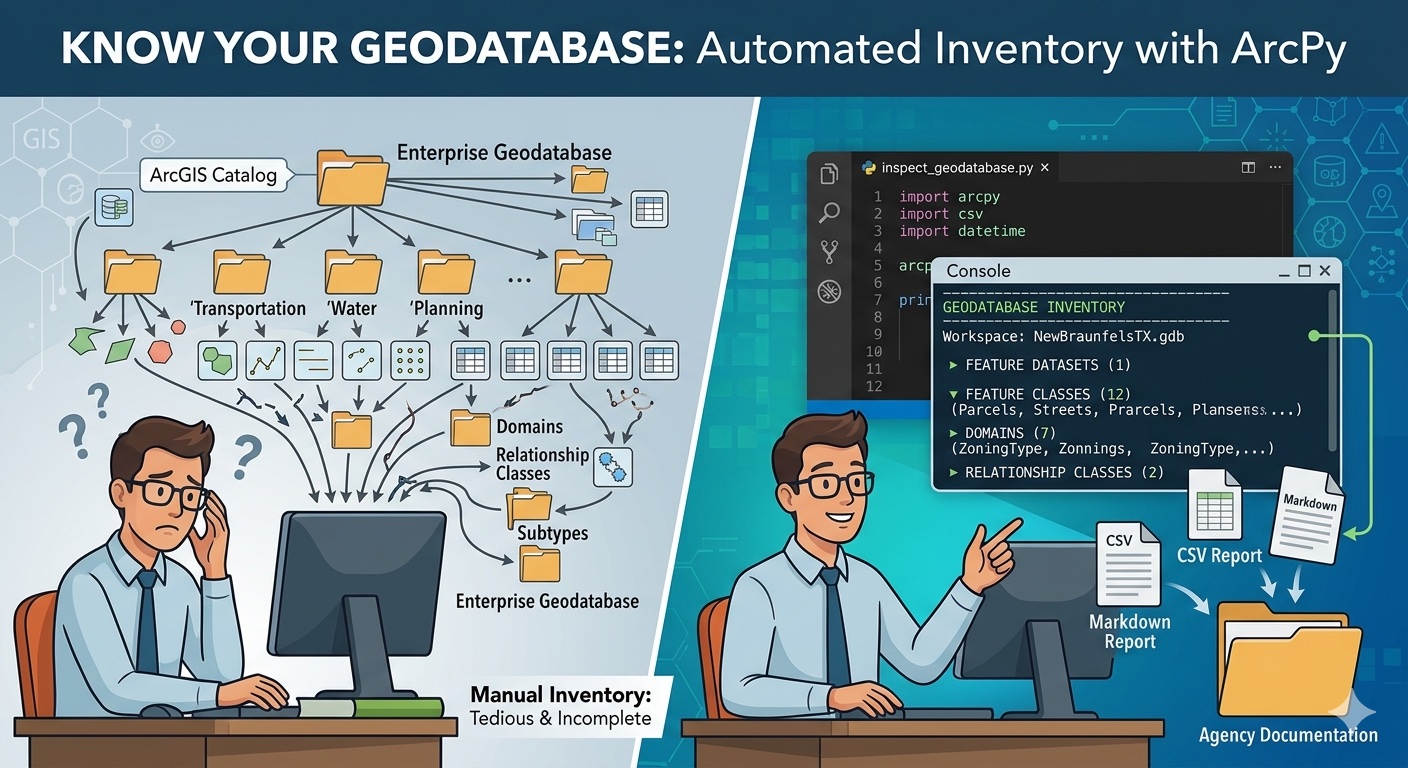
You’ve been here before. A vendor delivers a file geodatabase as part of a contracted project and you need to verify what they built before signing off. Your predecessor leaves the agency and you inherit an enterprise geodatabase connection and a folder of half-documented projects. Another department hands off a dataset for an upcoming data-sharing agreement, or your manager asks for an inventory of the GIS holdings for an open data initiative. The first question is always the same: what’s in this thing?
For ten feature classes, clicking through the Catalog pane is fine. For a hundred, it’s tedious. For an enterprise geodatabase with feature datasets, subtypes, domains, and relationship classes, manual inspection stops being a reasonable use of your time. And once you’ve inspected it, you have nothing to share with your team, nothing to attach to a project record, and nothing to compare against next quarter when you suspect something has changed.
This article walks through a reusable ArcPy script that produces a complete inventory of any geodatabase: workspace metadata, feature datasets and their spatial references, every feature class and table with record counts, fields with their types and properties, domains, subtypes, and relationship classes. The output goes to the console and a CSV (or Markdown) report you can drop straight into agency documentation.
I’ll build it up one layer at a time, explaining the choices along the way, then present the consolidated script at the end. The goal is for you to understand each piece well enough to adapt it — most working GIS analysts end up with their own version of this utility eventually, and you might as well start from a good base.
What the script will produce
Before we write any code, here’s the kind of report we’re aiming for. Run the script against a small geodatabase and you should get something like this:
================================================================
GEODATABASE INVENTORY
================================================================
Workspace: C:/Data/NewBraunfelsTX.gdb
Type: LocalDatabase (File Geodatabase)
Release: 10.0
Generated: 2026-04-29 14:22:11
FEATURE DATASETS (1)
—————————————————————-
Transportation
Spatial reference: NAD 1983 StatePlane Texas South Central FIPS 4204 (US Feet)
Feature classes: 3
FEATURE CLASSES (12)
—————————————————————-
Parcels Polygon 18,432 features
Streets Polyline 4,219 features
StreetCenterlines [Transportation] Polyline 4,219 features
…
TABLES (4)
—————————————————————-
OwnerHistory 12,884 rows
PermitLog 3,206 rows
…
DOMAINS (7)
—————————————————————-
ZoningType (CodedValue, TEXT)
R1 : Single Family Residential
R2 : Multi Family Residential
C1 : Commercial Light
…
RELATIONSHIP CLASSES (2)
—————————————————————-
Parcels_OwnerHistory (1:M) Composite=False
Origin: Parcels
Destination: OwnerHistory
Showing the end state up front turns the rest of this into a guided tour. Now let’s build it.
Setting the stage: workspace and environment
After the imports, pointing at a workspace is the obvious first step:
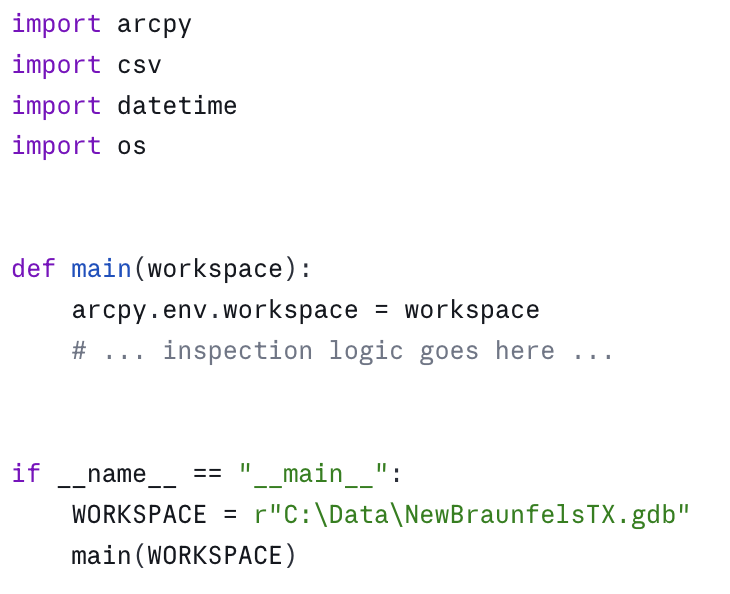
Two things to note about this structure. First, arcpy.env.workspace sets the workspace for the entire process, which is convenient but stateful. If your script later changes it (for example, to walk into a feature dataset), remember to set it back. I prefer to capture it once and pass it to functions explicitly — fewer surprises. Second, putting the WORKSPACE constant inside the if __name__ == "__main__": block (rather than at module level) keeps the inspection functions reusable. You can import this module from another script and call main("C:/Data/SomeOther.gdb") without hardcoded paths leaking through.
The first useful piece of metadata comes from arcpy.da.Describe:

Why arcpy.da.Describe and not the older arcpy.Describe? Both work, but arcpy.da.Describe returns a plain dictionary. The older version returns an object whose properties you have to know in advance, and which throws AttributeError if you ask for something that doesn’t apply to the data type. Dictionaries are easier to inspect, easier to serialize, and easier to handle defensively with .get(). Use arcpy.da.Describe unless you have a specific reason not to.
Walking the workspace: List functions vs. da.Walk
Listing the contents of a geodatabase is where most people first hit a snag. arcpy.ListFeatureClasses() returns the feature classes at the current workspace — but feature classes inside a feature dataset are not at the workspace root. They’re one level down.
This is the classic mistake:

The traditional fix is to list feature datasets, then loop into each one and list its feature classes:
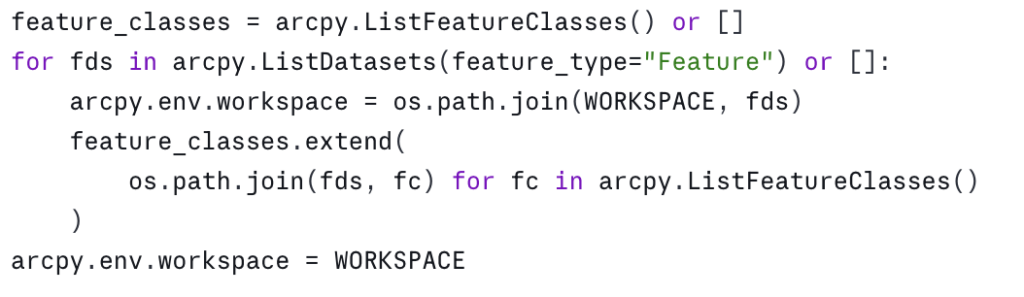
That works, but it’s clunky and it mutates arcpy.env.workspace. The cleaner option is arcpy.da.Walk, which behaves like os.walk for geodatabases:
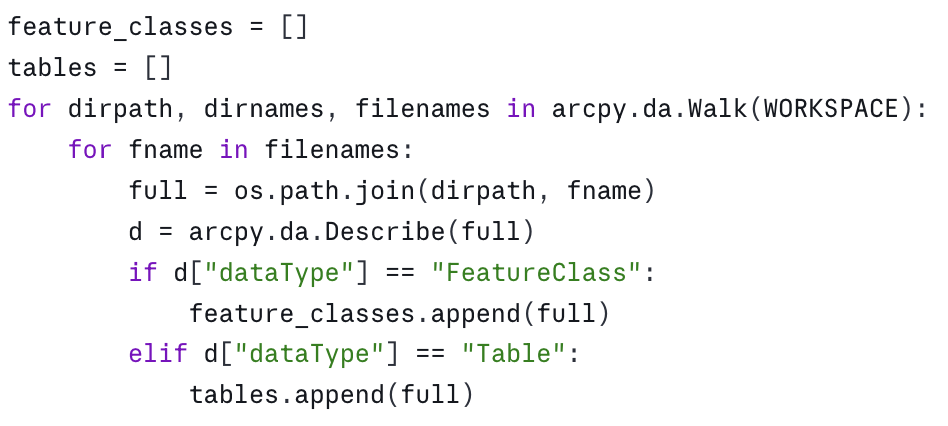
when you’re inside one, and the workspace path when you’re at the root. You can also filter by data type directly: arcpy.da.Walk(WORKSPACE, datatype="FeatureClass"). I usually walk once with no filter and route by dataType because I want to inventory tables and feature classes in the same pass.
One thing to know: arcpy.da.Walk does not report relationship classes, domains, or subtypes. Those are properties of the workspace and its datasets, not items we walk to. We’ll get them separately.
Counting records: the GetCount gotcha
If you want a record count, the obvious call is arcpy.GetCount_management(fc). The non-obvious part is that it returns a Result object, not an integer:

Forgetting the int(...) and .getOutput(0) is one of the most common mistakes in beginner ArcPy code. The result will print like a number but won’t compare correctly, won’t sort, and will give baffling errors downstream. Wrap it once in a helper and forget about it:

A performance note: on large enterprise datasets, GetCount can be slow because it scans the table. If you’re inspecting a versioned SDE geodatabase and a count takes thirty seconds, that’s expected. For inventory purposes that’s usually fine — you run the script once, save the report, and move on. If you need fast counts on enterprise data, drop to a SQL count(*) via a database connection, but that’s out of scope for a general-purpose inspection script.
Fields: more than just names and types
arcpy.ListFields(fc) returns a list of field objects. Their useful properties are:
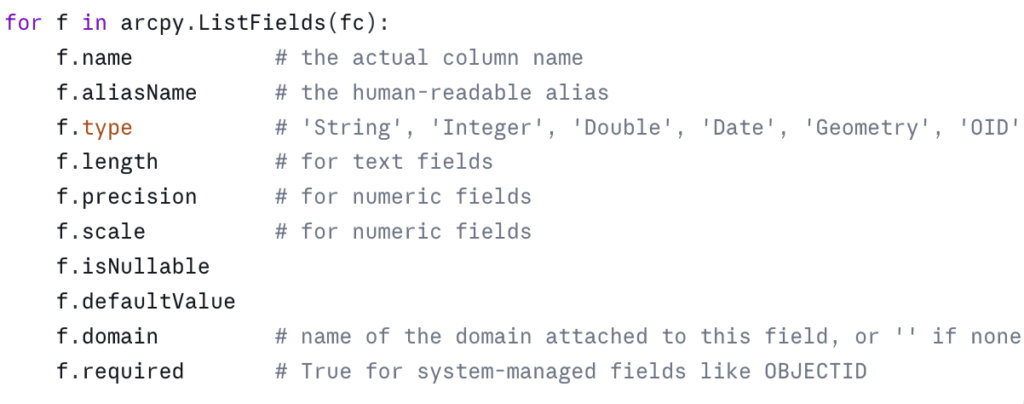
A subtle one: f.domain is the name of the domain, not the domain object. To get the actual coded values you have to look up the domain separately, which we’ll do in the next section.
Another subtle one: f.type returns slightly different strings than what you see in the Pro UI. The Pro UI says “Text”; ArcPy says “String”. Pro says “Long Integer”; ArcPy says “Integer”. This trips people up when they try to match a field type against a string they read off a screenshot. Build a small mapping if it matters for your output:
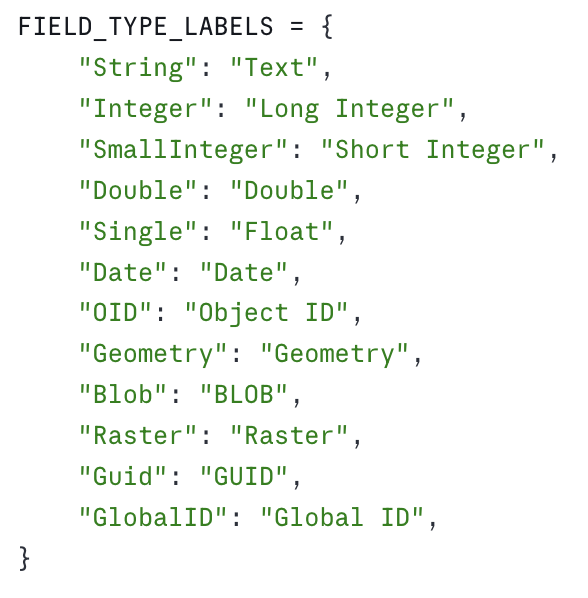
For an inspection report, I usually skip the geometry field in the field listing — it’s implied by the feature class’s shape type — and I skip OBJECTID unless I’m doing a deep audit. Both are noise.
Domains: coded values and ranges
Domains are workspace-level objects. Pull them with arcpy.da.ListDomains:
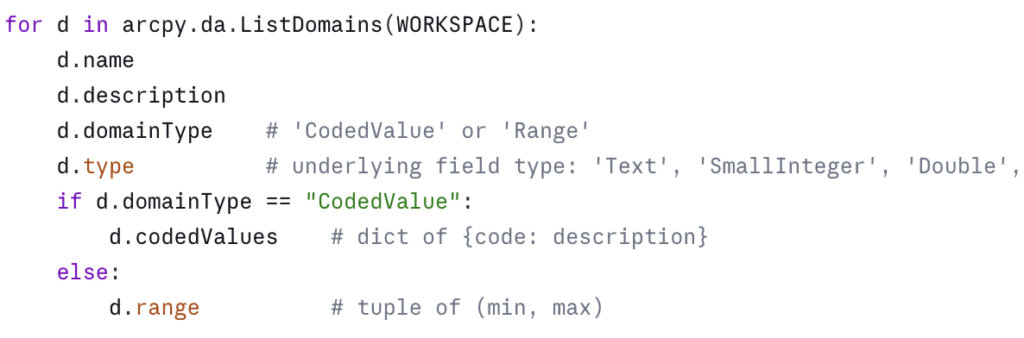
Two things worth noting in a report. First, the connection between a domain and the fields that use it is one-way at this level — the field knows its domain name, but the domain object doesn’t list its fields. If you want the reverse mapping, you have to build it yourself by walking every field in every feature class and table and recording the field-to-domain pairs. It’s worth doing; “where is this domain actually used?” is one of the most common questions when you inherit a geodatabase.
Second, range domains have a .range attribute that’s a two-tuple. Coded value domains have .codedValues as a dict. Mixing them up will throw an AttributeError — always branch on domainType before reading.
Subtypes: the often-forgotten layer
Subtypes are easy to miss because nothing in arcpy.ListFeatureClasses or the field list tells you they exist. You have to ask:

This returns a dictionary keyed on subtype code. Each value is itself a dictionary with the subtype’s name, default values per field, and any field-level domain overrides. If the feature class has no subtypes, you get back a dict with a single entry whose name is empty.
Subtypes are common in utility, transportation, and parcel data. A Streets feature class might have subtypes for Local, Collector, Arterial, each with its own default speed limit and its own domain on the surface-type field. If you don’t surface subtypes in your inventory, a downstream user will be confused why their edits suddenly snap to a different default.
In an inspection report, I list subtype codes and names per feature class, and flag any field whose domain differs from the field’s “default” domain. That’s usually enough to alert the reader without drowning them in detail.
Relationship classes
Relationship classes show up as items in the workspace, so arcpy.da.Walk will see them if you ask for the right datatype:
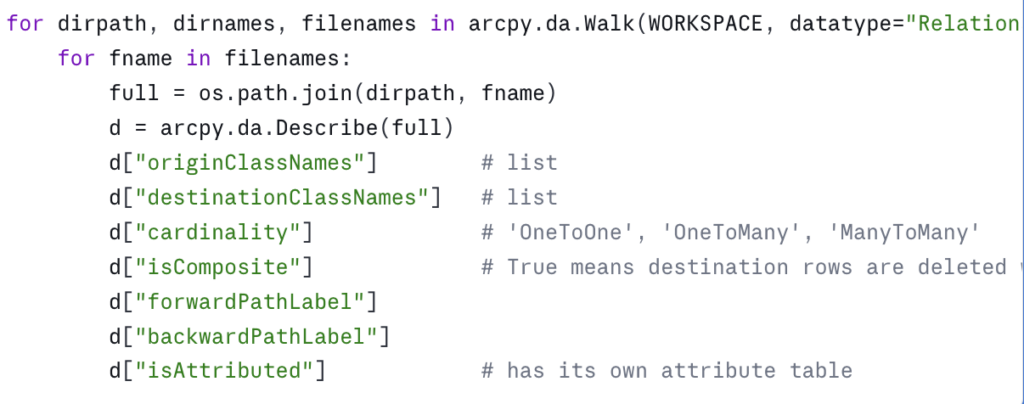
isComposite matters more than people realize. Composite relationships cascade deletes — delete a parcel and its owner history rows go with it. If you’re planning a data migration, an upgrade to a new geodatabase release, or handing data to another department, knowing which relationships are composite is a prerequisite for not silently destroying data.
Edge cases worth knowing
A few things that will eventually bite you:
Enterprise vs. file geodatabases. Most of what we’ve covered works identically against both. The differences show up in three places. First, an enterprise geodatabase’s “workspace” is typically a .sde connection file, and the user account in that connection determines which datasets you can even see. In a government environment with role-based database permissions — read-only analyst accounts, editor accounts, schema-owner accounts — your inspection report can look very different depending on which connection you used. If the report comes back surprisingly short, check the connection’s permissions before assuming the database is empty. Second, versioned and branch-versioned datasets behave differently with respect to record counts and locks. Third, some property names on Describe differ slightly — for example, versionedView is meaningful only on enterprise data.
Locked datasets. If a dataset is locked (often because it’s open in another Pro session, or because a tool crashed and left a lock behind), arcpy.da.Describe may still work but GetCount may fail. Wrap the count call in a try/except and report the lock rather than letting the whole script die.
Feature classes inside feature datasets. I mentioned this in the da.Walk section, but it’s worth restating: any code that uses arcpy.ListFeatureClasses() without also iterating through feature datasets will silently miss data. This is one of the most common bugs in inherited ArcPy scripts.
Very large workspaces. If you’re inspecting a geodatabase with thousands of feature classes — yes, they exist, especially in statewide or utility-scale enterprise databases — you may want to skip record counts on the first pass, or run them in parallel. A full inventory of a large agency warehouse can take an hour. For a one-time audit or a quarterly inventory, that’s usually fine; for an interactive tool, it isn’t.
The consolidated script
Here’s the full script, structured as functions so you can pull what you need. Make sure to scroll down to the bottom of the script and update the WORKSPACE and CSV_OUT variables to reflect the path to your geodatabase and where the output csv file should be stored. Remember that csv files can’t be stored in a geodatabase so you’ll need to make sure the output location is a folder.
Download the script as a Python Notebook.
You’ll need to unzip this file after downloading. Instructions for adding the notebook to an ArcGIS Pro project are provided below.
A few notes on the structure. Each piece of the inventory is its own function, returning plain Python data. The reporting functions are separate from the data-gathering functions, so you can swap in a Markdown writer, an Excel writer, or push the results into a project database without touching the inspection logic. The main() function ties it all together but is short enough to read in one breath.
Running this in an ArcGIS Pro Notebook
The most natural way to use this day to day is to save it as an ArcGIS Pro Notebook (.ipynb). Notebooks ship with Pro, automatically use the active project’s Python environment (so arcpy is already available — no conda setup, no environment cloning), and they let you keep code and explanatory text side by side, which is useful when other analysts on your team need to read or adapt the script.
1. Place the notebook file somewhere accessible — the project folder is a reasonable default. Pro will surface it under Notebooks in the Catalog pane. Download and unzip the notebook using the instructions provided in the section above.
2. Open it in Pro. In ArcGIS Pro select Insert –> New Notebook –> Add and Open Notebook and then point to the location of the GeodatabaseInventory.ipynb file you unzipped.
3. Update the workspace path. Find the variables that defines WORKSPACE and CSV_OUT and point them at the geodatabase you want to inventory.
4. Run all cell. To run the cell just click Shift + Enter on your keyboard.
Where to take it next
This script answers “what’s in the geodatabase.” The next obvious question is “how do I efficiently read and write all this data” — which is where ArcPy cursors come in, and where small choices make order-of-magnitude differences in performance. That’s the subject of the next article in this series.
In the meantime, run this against a geodatabase you think you know well. You will almost certainly find a domain you forgot about, a relationship class you didn’t realize was composite, or a subtype that’s quietly affecting a downstream tool. That’s the value of inventory: it turns assumptions into facts.
Take your ArcPy skills further
If this article was useful and you want to keep going, there are two paths depending on whether you want to build these capabilities yourself or have them built for your agency.
Build the skills yourself. Geospatial Training Services offers Automating ArcGIS Pro Tasks with AI-Generated Python Code, an 8 GISP-credit course designed for GIS analysts and technicians who don’t have a programming background. The course uses ChatGPT or Claude as a coding assistant to teach geoprocessing automation, cursor patterns (the subject of the next article in this series), and automated map production — all using ArcPy in a workflow that doesn’t require you to memorize Python syntax. Available live online, in person in Portland, Chicago, and Helena, or self-paced.
Have it built for your agency. Location3x is the consulting arm for this work, focused exclusively on government agencies. Common engagements include the kind of automation this article demonstrates — geodatabase audits, recurring inventory reports, custom Python toolboxes, parcel and asset synchronization, and ArcPy scripts that turn manual workflows into one-click tools. If your team has the inventory problem this article describes but doesn’t have the time or staffing to solve it in-house, that’s a typical Location3x project.
