
In the last article we built a script that inventories everything inside a geodatabase: feature classes, tables, fields, domains, subtypes, and relationship classes. Knowing what’s in there is the first step. The second is being able to read and write all that data efficiently, and that’s where cursors come in.
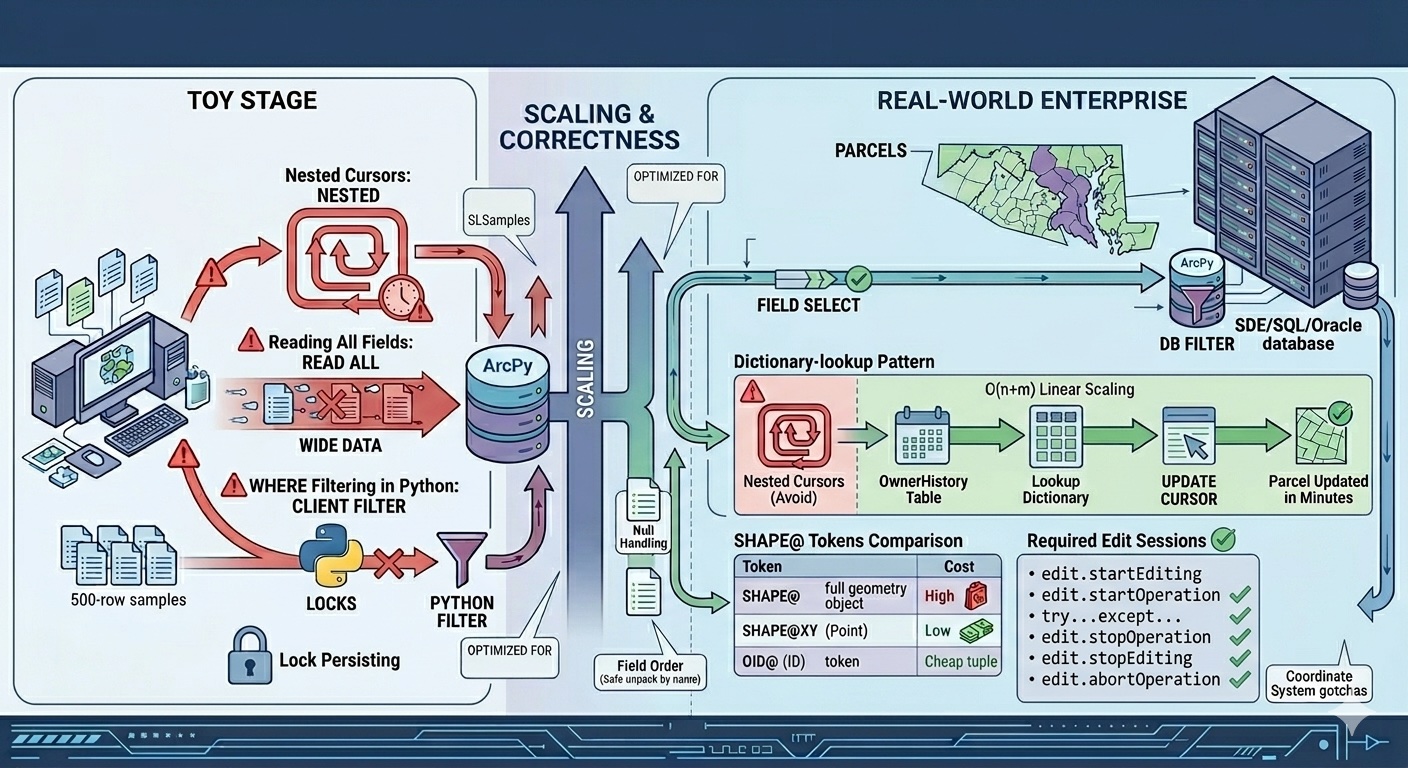
Most ArcPy cursor examples online stop at the toy stage — open a SearchCursor, print every row. That’s fine until you’re updating two million parcels, your script has been running for six hours, and you’re starting to wonder whether you should kill it or wait. Or until you write a perfectly reasonable-looking update loop, run it on a versioned enterprise feature class, and silently corrupt three weeks of edits.
Cursors are the workhorse of ArcPy. They’re also where small choices make order-of-magnitude differences in performance and correctness. The patterns that work on a 500-row sample geodatabase do not necessarily work on the parcel layer for a county of 400,000 properties. This article covers the cursor patterns that hold up on real data — what to do, what to avoid, and the worked example that ties it all together.
The three cursors at a glance
The arcpy.da module gives you three cursor types:
SearchCursor— read-only. Iterate rows; can’t modify them.UpdateCursor— read and modify in place. Also deletes viacursor.deleteRow()(frequently overlooked).InsertCursor— write new rows.
These replaced the older arcpy.SearchCursor (no da) over a decade ago. The da versions are dramatically faster and have a richer feature set. If you ever see code without the da, it’s either very old or copied from a stale forum post — replace it.
The fundamentals from here on apply to all three.
The fundamentals people get wrong
Always use with blocks
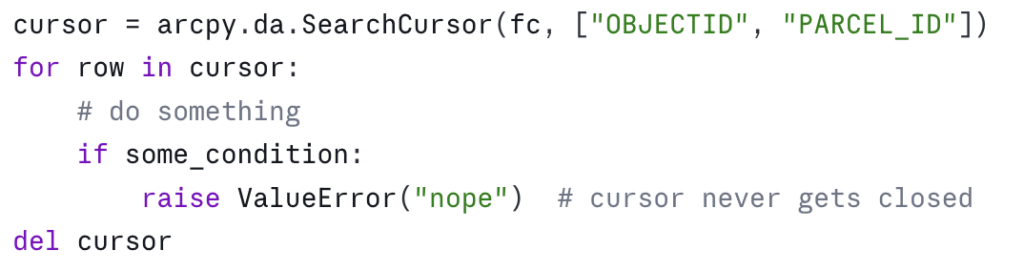
A cursor holds a lock on the dataset. If your script crashes before you call del cursor, the lock can persist until the Python process exits — and on enterprise geodatabases or feature classes participating in topologies, that lock can block other users.
The wrong way:
The right way:
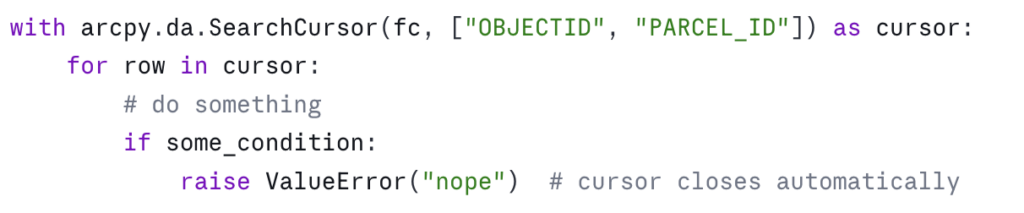
The with block guarantees cleanup whether the loop finishes, raises, or is interrupted. There’s essentially no situation where the bare-cursor form is preferable. Make it muscle memory.
Specify only the fields you need
The single biggest performance win in cursor code is asking for the fields you actually use, not everything. Consider:
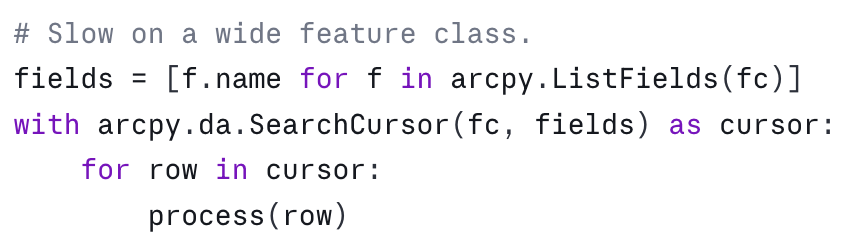

The cost difference is real and varies with the underlying data type, but the rule of thumb is: every field you ask for is a field that has to be read from disk (or pulled across the wire from an enterprise geodatabase) for every row. On a parcel layer with 80 fields, asking for two instead of all of them is a 40x reduction in data movement. On enterprise geodatabases over a slow network, this is the difference between a script finishing in five minutes and finishing tomorrow.
This becomes a habit once you’ve been bitten by it. Before you open a cursor, ask: which fields do I actually read or write inside this loop? Those are the fields you list.
Use SHAPE@ tokens deliberately
ArcPy cursors accept special “tokens” — strings prefixed with SHAPE@ or OID@ — that pull specific geometry properties without materializing the full geometry object. Use the right one and you’ll avoid expensive geometry construction:

The mistake is reaching for SHAPE@ when you only need a coordinate or a length. If your loop computes the centroid of every parcel, SHAPE@XY is roughly an order of magnitude faster than constructing the full Geometry object and asking it for .centroid. On a few hundred features it doesn’t matter. On a million, it’s the difference between a minute and an hour.
OID@ is similar — use it instead of "OBJECTID" when you want the object ID. It’s slightly more portable across data sources where the OID field has a different name.
Where clauses beat Python filtering
This is the pattern that won’t scale:
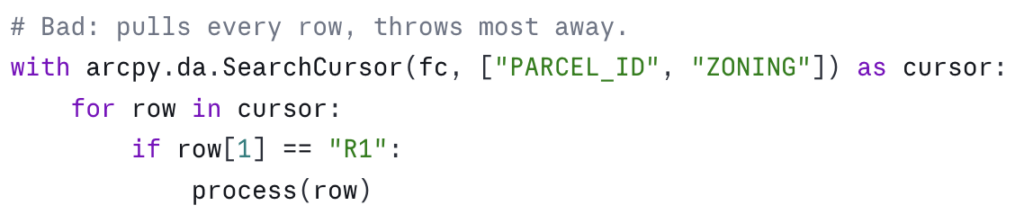
This is the same logic, with the filter pushed down to the geodatabase:

On a file geodatabase the saving is meaningful. On an enterprise geodatabase it’s transformative — the filter runs in the database engine and only matching rows cross the network.
Two practical notes. First, the SQL syntax depends on the underlying data source. File geodatabases use a particular SQL dialect; enterprise geodatabases inherit theirs from the underlying RDBMS. The arcpy.AddFieldDelimiters function is your friend for portable field-name quoting — it returns the right delimiter ("FIELDNAME", [FIELDNAME], or just FIELDNAME) for the given workspace. Second, where_clause is a positional argument that comes right after the fields list — read the signature in the help if you’re not sure.
Patterns that scale
These are the patterns I reach for when the data gets big or the logic gets non-trivial.
The dictionary-lookup pattern (the in-memory join)
You frequently need to update one feature class based on values in another table. The naive approach — open a cursor on the source for each row in the target — is O(n × m) and dies on real data. The right approach is to build a lookup dictionary once, then iterate the target.
Suppose you have an OwnerHistory table with PARCEL_ID, OWNER_NAME, and EFFECTIVE_DATE, and you want to write the most recent owner into a CURRENT_OWNER field on the Parcels feature class:
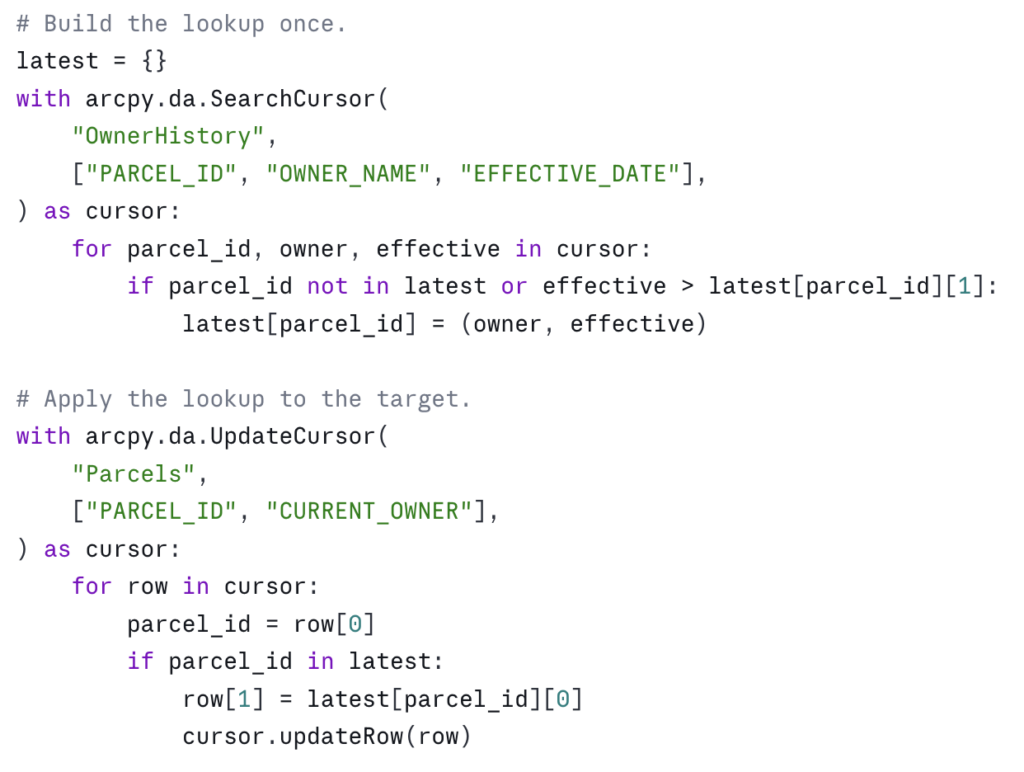
This is O(n + m) and it scales linearly. On a county parcel update — say 400,000 parcels and 1.2 million owner-history rows — this approach finishes in minutes. The nested-cursor version finishes in days, if it finishes at all.
Edit sessions for versioned data
If your target dataset is versioned (a common configuration in enterprise geodatabases), participates in a topology, has attribute rules, or is referenced by a relationship class with messages enabled, you must wrap your edits in an edit session. Otherwise, cursor.updateRow() will fail or — worse — succeed in a way that bypasses constraints and corrupts the data:
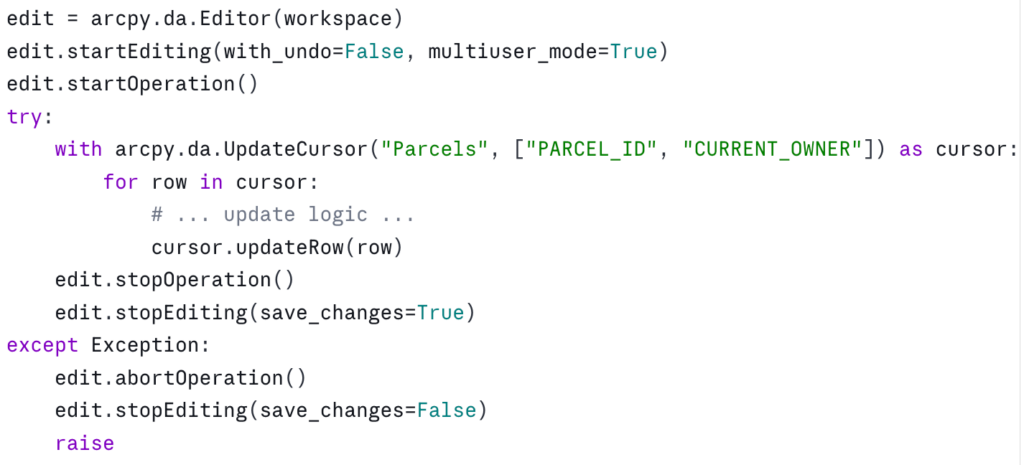
A few things to know. with_undo=False is faster and uses less memory but skips the undo stack — fine for batch scripts, not what you want for interactive editing. multiuser_mode=True is required for versioned data; for a non-versioned file geodatabase you can pass False or omit it.
The with arcpy.da.Editor(workspace) as edit: context manager form also exists in modern ArcGIS Pro versions and is cleaner — but the explicit start/stop pattern is more portable across ArcGIS Pro versions and gives you precise control over operation boundaries when you want to commit in chunks. Pick the one that fits your situation.
Reusing an InsertCursor in a tight loop
InsertCursor has setup cost. If you’re inserting one row, that cost doesn’t matter. If you’re inserting one million, opening and closing a fresh cursor for each row is catastrophic:


Same shape applies to UpdateCursor — open one cursor, iterate it, close it. Don’t open a fresh cursor inside another cursor’s loop.
Spatial filtering with spatial_filter
SearchCursor and UpdateCursor accept a spatial_filter parameter — a geometry that restricts the cursor to features intersecting it. This is less commonly known than where_clause but equally useful:
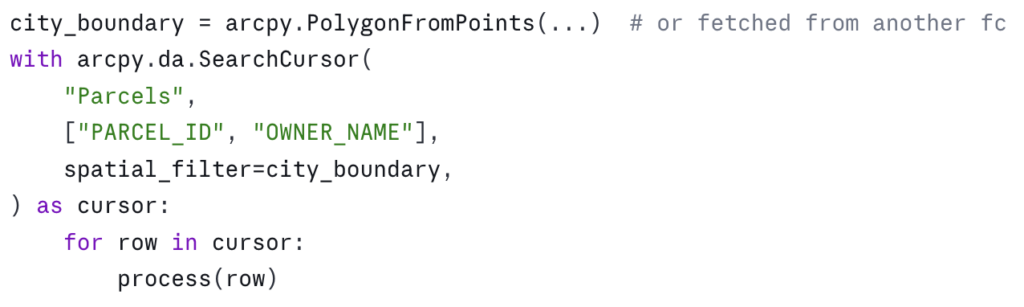
For complex spatial selections — “all parcels within the city limits and outside the floodplain” — this is faster and less error-prone than running Select_analysis to create an intermediate feature class. You can combine where_clause and spatial_filter in the same cursor.
The correctness traps
Performance is half the story. The other half is not corrupting the data.
Field order matters — and is silent when wrong
The cursor’s field list defines the order of values in each row tuple. If you change the field list and forget to update the indexing, nothing tells you. The script runs. The data ends up wrong:
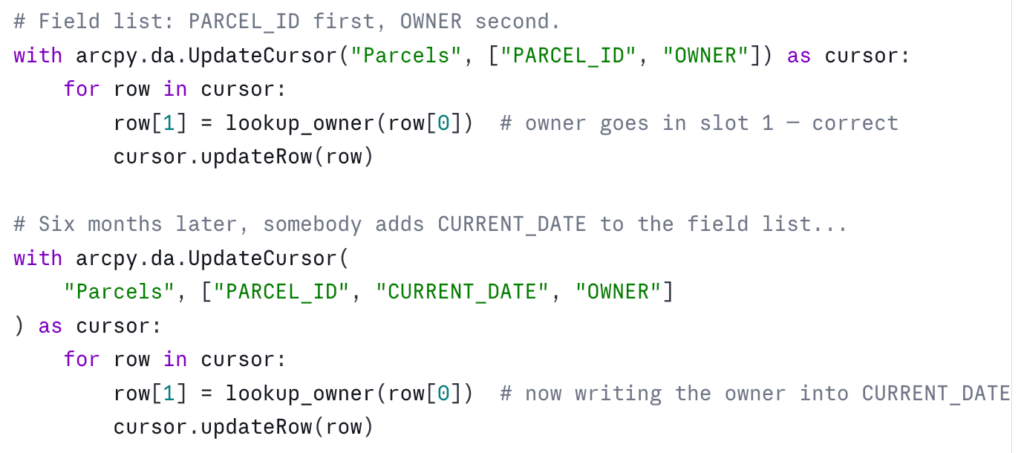
The defense is naming. Unpack the row into named variables at the top of the loop, and write back to the same names:
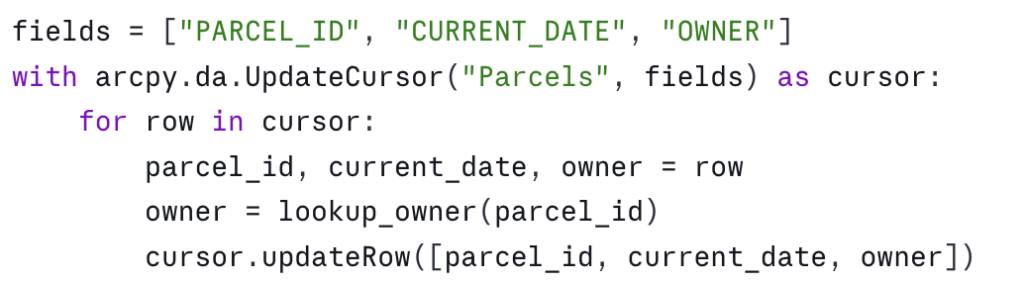
Slightly more verbose, but the field-to-value relationship is explicit and survives future edits to the field list. On any cursor with more than three or four fields, this is worth doing by default.
Editing during iteration
UpdateCursor is designed to modify the row you’re currently looking at. It is not designed to modify other rows in the same cursor, and it is not designed to be active while another cursor is editing the same dataset. Both patterns produce undefined behavior — sometimes silently wrong results, sometimes errors hours into a script.
If your update logic for a row depends on values in other rows of the same dataset, the right pattern is to read everything first into memory (or into a dictionary), close the read cursor, then open the update cursor and apply the changes. Don’t try to do it in one pass.
Null handling
Geodatabase fields can be NULL (which ArcPy returns as None), or they can be empty strings, zeros, or sentinel values. None of these are equivalent. A field with isNullable=False cannot be assigned None — the updateRow call will fail. A text field set to "" is not the same as a text field set to None, and downstream consumers may treat them differently.
When you write to a field, know what its nullability is — arcpy.ListFields will tell you — and convert appropriately:

When you read from a field, expect None for any nullable field and handle it:

Coordinate system gotchas
SearchCursor and UpdateCursor accept a spatial_reference parameter. If you pass one, the geometries returned by SHAPE@* tokens are projected on the fly to that spatial reference. If you don’t pass one, you get geometries in the dataset’s native spatial reference.
Two consequences. First, SHAPE@LENGTH and SHAPE@AREA are calculated in the units of the spatial reference. If your data is in geographic coordinates (decimal degrees) and you pull SHAPE@LENGTH, you get a number in degrees, not meters or feet. Project to a planar coordinate system or use the geodesic methods on the geometry object.
Second, if you read from one cursor in one spatial reference and write to another cursor in a different spatial reference, you can silently introduce reprojection drift. Be explicit about which spatial reference your code expects, and assert it if it matters.
A worked example: tagging parcels with their current owner
Bringing the patterns together. The task: for every parcel in Parcels, find the most recent record in the OwnerHistory table and write the owner name to a CURRENT_OWNER field on the parcel. The dataset is in an enterprise geodatabase, the parcel layer is versioned, and there are roughly 400,000 parcels and 1.2 million owner-history rows.
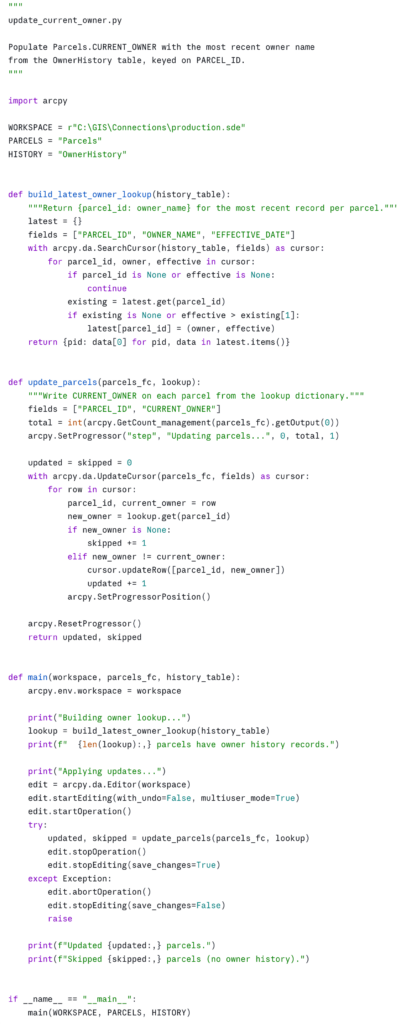
A few choices in this example worth pointing out.
The lookup is built once. Despite the history table having three times as many rows as the parcel feature class, we touch each history row exactly once and each parcel row exactly once. The total work is O(n + m).
The update is conditional. We only call updateRow when the owner has actually changed. On versioned data this matters — every updateRow writes a new version row, even if the values are unchanged. Skipping no-op writes can dramatically reduce the size of the resulting reconciliation.
Progress reporting is in. arcpy.SetProgressor integrates with the Pro UI when this is run as a script tool, and is a no-op when run from a notebook or command line — so the same code works in both. On long-running tools, the progress bar is the difference between a user trusting the tool and a user killing it because they think it’s hung.
Errors abort the edit. If anything goes wrong inside the loop, abortOperation rolls the transaction back. Versioned edits without this safety net can leave a session in a half-applied state that’s painful to clean up.
The functions are small and named for what they do. build_latest_owner_lookup and update_parcels are reusable and testable in isolation. The main is short enough to read in one breath, like in the inspection script.
Running this in an ArcGIS Pro Notebook
Download the script as a Python Notebook. You’ll need to unzip this file to see the Notebook file. Same pattern as the inspection notebook from part one: save it as an .ipynb, place it in your project folder, and step through the cells. Notebooks pick up the active project’s Python environment, so arcpy is available with no setup, and the print output and progress messages render inline beneath the cells where they originate.
The natural cell layout: one cell for the imports and constants, one cell each for build_latest_owner_lookup and update_parcels, one cell for main, and a final cell with the workspace, feature class, and table names that calls main(). The if __name__ == "__main__": guard at the bottom of the script can be replaced with a plain call to main(WORKSPACE, PARCELS, HISTORY) in that final cell — the guard exists for the standalone-script case and isn’t needed in a notebook.
If you want to expose this as a script tool for non-coder colleagues, replace the constants with arcpy.GetParameterAsText calls and configure the parameters in the tool’s properties — three text inputs for the workspace, parcels feature class, and history table.
Where this fits in the series
The first article in this series gave you a way to inventory any geodatabase. This one gives you the patterns for reading and writing geodatabase data efficiently. Together they cover the foundations of useful ArcPy work: knowing what’s there, and being able to do something with it.
The next obvious extensions are around automation in scale: scheduling these scripts to run on a cadence, packaging them as Python toolboxes for distribution, and integrating them with ArcGIS Pro’s Tasks for non-coder workflows. Those are subjects for future articles.
In the meantime, the practical exercise is to find one place in your current workflow where you’re using a join, a Calculate Field, or a Field Map operation that takes longer than you’d like — and rewrite it as a cursor pattern from this article. The first time you take a 40-minute geoprocessing run down to 90 seconds, the value of these patterns becomes hard to forget.
Take your ArcPy skills further
If this article was useful and you want to keep going, there are two paths depending on whether you want to build these capabilities yourself or have them built for your agency.
Build the skills yourself. Geospatial Training Services offers Automating ArcGIS Pro Tasks with AI-Generated Python Code, an 8 GISP-credit course designed for GIS analysts and technicians who don’t have a programming background. Module 3 is dedicated to the arcpy.da cursor patterns this article covers, and the rest of the course extends those patterns to geoprocessing automation and map production — using ChatGPT or Claude as a coding assistant so you don’t have to memorize Python syntax to be productive. Available live online, in person in Portland, Chicago, and Helena, or self-paced.
Have it built for your agency. Location3x is the consulting arm for this work, focused exclusively on government agencies. Common engagements include the kind of automation this article demonstrates — bulk attribute synchronization, cross-table calculations, custom Python toolboxes, parcel and asset workflows, and ArcPy scripts that turn long manual processes into one-click tools. If your team has the workflow problem this article describes but doesn’t have the time or staffing to solve it in-house, that’s a typical Location3x project.
