
If you find yourself rebuilding the same project structure over and over in ArcGIS Pro — adding the same basemaps, wiring up the same database connections, recreating the same layout, importing the same toolboxes — there is a better way. Custom project templates let you capture a fully configured project once and reuse it as the starting point for every new project after that.
They are one of those features that quietly saves hours of setup time across a team and enforces consistency without anyone having to think about it. But there is also a long-standing behavior tied to how templates handle data sources that can trip you up if you don’t know to watch for it. We’ll cover both: what templates are and how to get the most out of them, and the one issue that has followed this feature across ArcGIS Pro releases and is still present in 3.7.
What Is a Custom Project Template?
A project template is a packaged, reusable starting point for new ArcGIS Pro projects. When you create a new project from a template, Pro spins up a fresh project that already contains everything you defined in the template — so you and your team begin from a known, consistent state rather than a blank slate.
A template can carry along:
- Maps and scenes, including the layers, symbology, and labeling you’ve already set up
- Layouts, complete with map frames, legends, titles, and other map elements
- Connections to folders, databases, and servers
- Toolboxes and geoprocessing models your workflow depends on
- Styles, layer files, and other project items
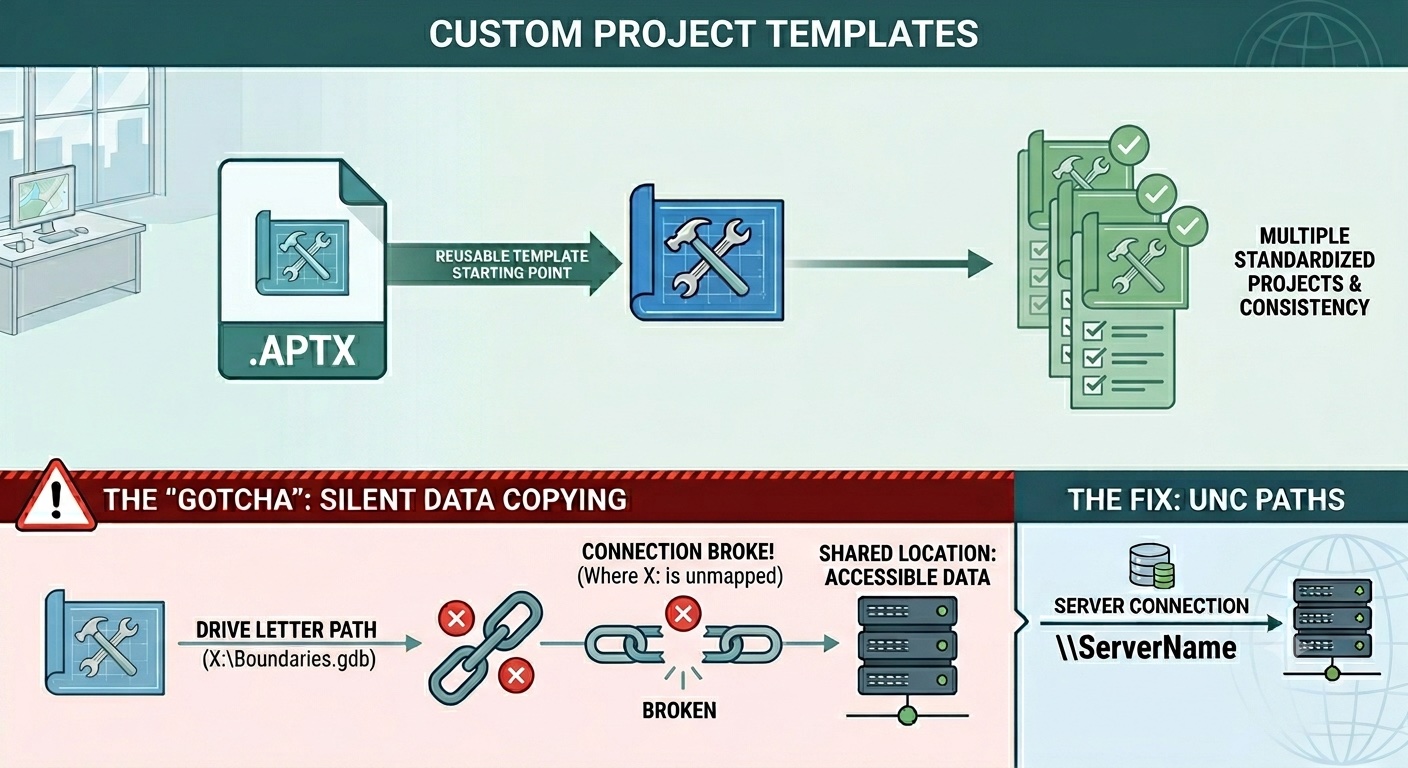
Templates are saved as .aptx files. You can keep them locally, place them on a shared network location for your team, or publish them to ArcGIS Online or your enterprise portal so they show up directly on the Pro start page for anyone in your organization.
Why Use Them?
The value comes down to consistency, speed, and lowering the barrier to doing things the right way.
Standardization across a team or organization. If every analyst should start with the same coordinate system, the same database connections, the same approved symbology, and the same layout sized for your standard map products, a template bakes all of that in. Nobody has to remember the standards because the standards are already in place.
Faster project startup. The repetitive setup work — connecting to the enterprise geodatabase, adding the reference layers, importing the toolbox, configuring the layout — happens once when you build the template. After that, every new project inherits it in seconds.
Easier onboarding. New staff don’t need to memorize a setup checklist. They pick the right template and start working inside a properly configured project immediately.
Repeatable, defensible workflows. For recurring deliverables — monthly reporting maps, parcel edit projects, analysis workflows that always use the same inputs — a template ensures each project is built the same way every time, which matters when results need to be consistent and auditable.
How to Create and Use a Custom Template
Creating a template is straightforward. Build out a project exactly the way you want your starting point to look — add your maps, connections, layouts, and toolboxes — and then export it as a template from the Share ribbon using the Project Template option. You’ll choose whether to save it as a file on disk or upload it to ArcGIS Online / your portal, and you can add a name, summary, tags, and a thumbnail so it’s easy to find later.
A couple of inclusions are optional and worth a deliberate choice. Project toolboxes (other than the default toolbox) are only included if you check Include Toolboxes, and geoprocessing history items are only included if you check Include History Items. If your template is meant to carry a workflow’s tools forward, make sure those boxes are checked; if not, leave them off to keep the template lean.
To use the template, you create a new project the way you normally would. Templates saved to your portal or to your local template folder appear in the list of available templates on the start page; templates saved as standalone .aptx files can be browsed to directly. Pick the template, name your new project, and Pro generates a fully configured project for you.
A few practical tips worth keeping in mind:
- Give templates clear names, good descriptions, and tags. A folder full of cryptically named
.aptxfiles helps no one. - Decide deliberately where templates live. A shared, version-controlled location keeps the whole team on the same version rather than scattering personal copies.
- Revisit templates periodically. Connections change, standards evolve, and a stale template quietly propagates outdated settings into every new project.
- Before you distribute a template, create a test project from it and inspect the layer source paths in the layer properties. This one check confirms whether your data is being referenced or copied — and it’s the surest way to catch the issue described below before it reaches anyone else.
The One Issue to Watch For
Here is the catch, and it’s an important one because it’s easy to miss. Credit where it’s due: thanks to Tripp Corbin of Cultivate Geospatial for bringing this behavior to my attention.
When a project template includes layers whose data is stored on a local drive — referenced through a drive-letter path like C:\GISData — ArcGIS Pro copies that data into the template itself. Every project you then create from the template gets its own new local copy, and any edits you make are performed on that copy rather than on the original dataset. Data stored on a network drive or in an enterprise geodatabase is referenced instead of copied, so each project created from the template points back to the same shared dataset.
There’s a second, related trap with drive letters even when data isn’t copied. By default, a connection references whatever letter the drive happens to be mapped to — C:\MyData, X:\Boundaries.gdb, and so on. That letter is specific to the machine it was set up on. Create a project from the template on a different computer where X: is mapped somewhere else (or isn’t mapped at all), and the connection breaks. So drive-letter paths are fragile in two distinct ways: local ones get copied, and shared ones can fail to resolve on another machine.
The behavior is also quiet. Nothing warns you it has happened. Unless you go in and verify your data sources, you won’t notice you’re working against a local copy instead of the maintained original — and that’s a problem if you expected a live link, because edits and updates won’t flow the way you assumed they would. This is a long-standing behavior; in my experience it has been present across ArcGIS Pro releases and it still exists in 3.7.
The Fix: UNC Paths
The solution is to add your shared data using UNC paths rather than mapped drive letters. A UNC path looks like this:
\\ServerName\ShareName\Folder\Data.gdbA UNC path doesn’t depend on how any particular machine maps its drive letters, so the reference holds up when the template is used on a different computer. For shared datasets that should stay live, this is what keeps every project pointed at the same source instead of spawning local copies.
If your data lives on a network share, this is usually a non-event — your IT group has likely already set up the share, and pointing to \\ServerName\ShareName is simple. The harder question is the local one: how many GIS professionals know how to set up a UNC path for a local drive like their C: drive? In my experience teaching GIS classes, not many. You may not even have permission to create a share on your own machine, and most folks have never had a reason to learn what a UNC path is in the first place.
That’s no knock on the GIS community. UNC paths have historically been an IT concern, not something we have to create or manage as part of day-to-day GIS work. But it does mean this is exactly the kind of issue that slips past people — the knowledge gap and the silent behavior line up perfectly.
One Important Exception: Sharing Outside Your Organization
There’s a nuance that complicates the simple “UNC fixes it” message. When you save a template to your portal, you’ll see a Share outside of organization option.
Leave it unchecked and the behavior above holds: data on UNC paths, enterprise databases, and the connections themselves continue to be referenced once a project is unpacked. Check it, and Pro deliberately does the opposite — it copies data from enterprise databases, UNC-path folders, and feature services into file geodatabases, includes styles, and removes the folder, server, and database connections. That’s by design, so that recipients who don’t share access to your network drives, enterprise geodatabases, or styles still get a project that works.
So the rule of thumb is: for a template used within your organization where everyone can reach the same resources, UNC paths and enterprise connections stay live. If you’re packaging a template to hand to people outside that shared environment, expect the data to be consolidated into the template instead.
What’s Not Affected by Default
Putting the exception aside, for a template shared internally the data sources you generally don’t have to worry about being copied are enterprise geodatabase connections and web services / feature services, along with anything referenced through a proper UNC path. Those are referenced rather than copied, and behave as you’d expect. The copy behavior is specific to data on local drive-letter paths.
The Takeaway
Custom project templates are genuinely one of the better productivity and standardization tools in ArcGIS Pro. If you’re building the same kind of project repeatedly, or you’re trying to keep a team aligned on a consistent setup, they’re well worth the small investment to create.
Just go in with your eyes open about how data sources are handled. Before you distribute a template, check how its data is connected and inspect the layer source paths in a test project. If your data sits on a local drive-letter path, expect it to be copied into the template and replicated into every project built from it — and reach for UNC paths if a live connection to a shared source is what you actually want. A few minutes verifying your data sources up front will save you from quietly working against the wrong copy of your data later.
Want to Build a Deeper Command of ArcGIS Pro 3?
Details like this one — the kind of behavior that quietly works against you until someone points it out — are exactly what we focus on in our hands-on ArcGIS Pro training. We don’t just walk through where the buttons are; we cover how projects, connections, and data sources actually behave so you can avoid the traps before they bite.
If you want to strengthen your foundation, take a look at our two Mastering ArcGIS Pro 3 courses:
- Mastering ArcGIS Pro 3: Maps, Layers, Projects, and Layouts — A 1.5-day course covering the fundamentals, from the ribbon-based interface through maps, layers, projects, and layouts. This is where the project and connection concepts behind today’s topic live.
- Mastering ArcGIS Pro 3: Editing, Analysis, and Automation — A 2-day course for users ready to advance to intermediate skills, including map series, geoprocessing and analysis, sharing, custom pop-ups, tasks, and Arcade.
Both are offered in flexible formats — live-classroom, live-online, instructor-guided online, and self-paced — so you can learn the way that fits your schedule. Take them together for a complete grounding in ArcGIS Pro 3, or pair them with our other ArcGIS Pro offerings. Browse the full schedule and details at geospatialtraining.com.
