
Every GIS professional knows the feeling. You open a map you authored last week, click around to verify a few edits, and the whole thing crawls. Layers paint in fits and starts, the scale bar lags, and you’re left guessing which of your two dozen layers is the culprit. For years, diagnosing slow-drawing maps in ArcGIS Pro meant turning layers on and off one at a time, watching the clock, and trusting your gut.
ArcGIS Pro 3.7 changes that. One of the headline additions in this release is the new Analyze Map pane, a built-in tool for evaluating your maps and scenes for issues with drawing performance, display, or usability. Instead of guessing, you get a structured list of known issues and a layer-by-layer breakdown of exactly where your draw time is going. If you author maps for an agency, build production cartographic products, or hand off projects to colleagues who will open them on lesser hardware, this is a tool worth learning well.
Where to find it
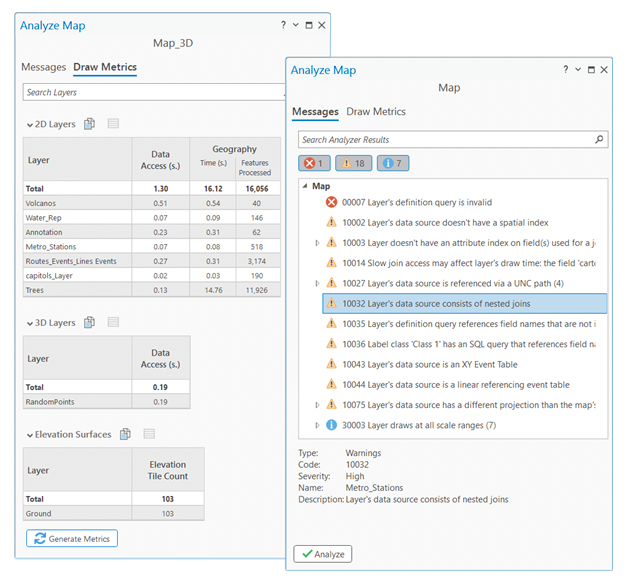
The Analyze Map pane lives on the Help tab of the ribbon, in the Performance group. With a map or scene open, click Analyze Map and the pane opens with two tabs: Messages and Draw Metrics. The first finds known problems; the second measures performance. They work well together, and most real diagnostic sessions use both.
The Messages tab: a spell checker for your map
The Messages tab works a lot like the spell checker in a word processor. Click Analyze, and ArcGIS Pro scans your map for known contributors to poor display performance, presenting them as a prioritized list. Each entry comes with a description and suggested fixes, and selecting a message surfaces additional detail at the bottom of the pane, including the name of the problem layer and the severity of the issue.
Issues fall into three categories, listed in order of priority:
- Errors must be fixed before the map can draw as authored, typically because a required resource is missing or an unresolved issue prevents proper display. Think broken data source paths or a referenced style that no longer exists.
- Warnings flag things that may still function but could be dragging down your draw performance. The map will probably work, but you should address these.
- Messages are diagnostic or contextual notes. They do not imply a significant issue, and resolving them is optional.
A few practical touches make the pane easy to work in. You can filter the list by typing a layer or message name into the search bar, or use the show/hide buttons to focus on a single severity level. To dig into any issue, hover over it and click the Options button (or right-click it) to open a context menu with a direct link to a help topic explaining the problem and its solutions. Double-clicking a message opens that help documentation automatically. And when an issue affects more than one layer, you can expand the group to see the full list of affected layers.
For anyone authoring maps destined for sharing or publishing, this is the place to start. Clearing errors and warnings here often resolves the most obvious performance complaints before you ever need to measure anything.
The Draw Metrics tab: where your draw time actually goes
The Messages tab tells you about known problems. The Draw Metrics tab is for the harder cases, the complex maps with many layers where the bottleneck isn’t obvious and no warning fires. This tab generates and presents analytics about how each layer in your map or scene contributes to overall drawing time.
Here’s how it works. Pan or zoom to the extent you care about, open the Draw Metrics tab, and click Generate Metrics. ArcGIS Pro clears the cache and redraws the active map, timing the process. You can’t interact with the application while it collects (though you can cancel), and you can’t generate metrics while drawing is paused. A word of caution from the documentation worth repeating: if you click Generate Metrics while the map is still drawing, your results may not be accurate. Let the draw finish first.
A key thing to understand is that metrics are tied to the current extent. If you pan or zoom to a new area, the results don’t refresh automatically, because the amount of data and the scale at which it draws may have changed. Want metrics for the new view? Click Generate Metrics again. Results persist in the pane until you close the map or regenerate.
Reading the results
Metrics are organized into categories based on what’s in your map: 2D Layers, 3D Layers, and Elevation Surfaces. A simple 2D map shows only the 2D category; a scene with both 2D and 3D content shows both. Layers that aren’t visible generate no metrics and won’t appear in the list, and some visible layers may report nothing at all, which is flagged with an icon.
By default, the tables list layers in the same drawing order as the Contents pane. You can right-click any column header to sort ascending or descending, and right-clicking a layer’s name in a metrics table lets you select that layer in the Contents pane, so jumping from a slow row straight to the layer’s properties takes one click.
At the top, the Totals section summarizes the complexity of your whole map:
- Map Draw Time is the clock time from when the first layer begins drawing until the last one finishes. Importantly, this is not the sum of every layer’s individual time. Because ArcGIS Pro uses multithreaded processing, the total draw time can actually be lower than the layer times added together, since layers draw in parallel. This trips people up, so it’s worth internalizing: a layer reporting a high individual time isn’t necessarily extending your overall draw if it’s drawing alongside others.
- 2D Features Processed is the total number of features processed across all drawing phases. Note that this isn’t the same as the feature count in your extent, because a single feature can be processed multiple times across separate phases.
- 3D Features Processed, 3D Memory Usage, and Elevation Tile Count round out the totals for scenes and elevation content.
The real diagnostic value is in the per-layer tables. Across all of them, the Data Access column (in seconds) measures how long it takes to find and retrieve a layer’s data from its source, whether that’s a local drive or a network connection. A high Data Access time is one of the most actionable signals in the whole pane.
Drawing phases tell you why a layer is slow
For 2D layers, time and feature processing are broken out into drawing phases, the fundamental operations that happen each time a map draws. This is what turns “this layer is slow” into “this layer is slow because of its labeling.” The phases are:
- Geography covers all symbology and visual effects.
- Geographic Overlay handles special cases where symbology draws over other layers, such as proportional symbols on polygon layers.
- Selection covers selection drawing.
- Labeling covers all labeling, annotation, and dimension draws. Layers with barrier weights, such as graphics layers, may also report time or features here because barriers affect label placement.
- Masking covers masking and feature-level masking.
Phases with nothing to report are hidden by default, but you can right-click the table header to show or hide any of them. If a layer’s time is concentrated in the Labeling phase, you know to look at your label expressions and placement settings rather than your symbology, and vice versa. That precision is the point.
Extra signals for 3D layers
Scenes get additional 3D-specific metrics that are genuinely useful for anyone doing 3D work:
- Complexity Index is a score representing a layer’s feature, data, symbology, and vertex complexity. The scale adjusts to your system’s graphics capabilities, and if a layer’s index exceeds 100 percent, it’s considered too complex to draw and triggers a drawing alert.
- Vertex Count sums the vertices visible in the extent.
- Memory Usage reports the GPU memory the layer consumes to draw as it appears in the view. High values often point to heavy material textures, such as 3D-object layers with multiple levels of detail.
When complexity or memory usage runs high, the documentation’s guidance is to reduce the features in the extent, simplify the symbology, or adjust the application’s rendering quality settings.
Turning metrics into fixes
Diagnosing is only half the job. The patterns the pane reveals map cleanly onto a handful of proven remedies:
- High Data Access time suggests slow network access, hard drive slowness, or an inefficient data source. This is your cue to look at where the data lives and how it’s stored, not at how it’s symbolized.
- High feature processing counts on a layer point toward two classic fixes: clip the layer to your area of interest, or build a multiscale map so dense data only draws when you’re zoomed in far enough to need it.
- Time concentrated in a single phase tells you exactly which property to revisit, whether that’s labeling, symbology, or masking.
- High 3D complexity or memory calls for fewer features, simpler symbols, or a rendering quality adjustment.
Once you’ve generated metrics, you don’t have to eyeball them in the pane. You can copy an entire category table, or hold Shift to select specific rows and copy just those, then paste into a spreadsheet for comparison across maps or over time. For agencies tracking performance against a service-level target, or anyone documenting before-and-after improvements, that export path is handy.
Knowing the tool’s boundaries
The Analyze Map pane is focused, by design, on map drawing performance. It won’t tell you about application-level slowness, memory leaks across the whole session, or geoprocessing bottlenecks. It’s also worth noting that drawing metrics can’t be generated for stereo maps.
It helps to situate Analyze Map alongside Esri’s other performance tools so you reach for the right one. Analyze Map is best for understanding how a specific map or scene draws in your current project. The Diagnostic Monitor is the better instrument for application-level problems such as resource overconsumption or broader session degradation. And the ArcGIS Pro Performance Assessment Tool (PAT) measures higher-level operations like application startup, map loading, and layer rendering, which is useful for gauging how your machine and environment stack up. Knowing where one tool ends and another begins keeps you from drawing the wrong conclusions from the right data.
Why this matters for your workflow
If you’ve spent any time authoring maps for delivery, you know that a map that flies on your workstation can grind to a halt on a colleague’s machine or over a VPN connection to enterprise data. The Analyze Map pane gives you a repeatable, evidence-based way to catch those problems before they ship. Instead of toggling layers and guessing, you generate metrics, read the phases, and fix the specific thing that’s costing you.
For those of us who build and hand off ArcGIS Pro projects regularly, I’d suggest making the Messages tab a standard pre-delivery check, the same way you’d proof a layout before sending it. Clear the errors, address the warnings, and when something still feels sluggish, let the Draw Metrics tab show you precisely where to look. It’s a small habit that pays off every time a map lands on someone else’s screen and just works.
The Analyze Map pane is available starting in ArcGIS Pro 3.7. For complete details, see Esri’s documentation on analyzing a map and generating and reviewing drawing metrics.
