

Introduction
One of the most powerful data quality control features in ArcGIS Pro file geodatabases is the ability to create and apply domains to your attribute fields. Domains restrict the values that can be entered into a field, ensuring data consistency and reducing errors. Whether you’re managing utility infrastructure, tracking environmental data, or maintaining any spatial database, properly configured domains will save you countless hours of data cleanup and validation.
In this guide, we’ll walk through the complete process of creating and applying both coded value domains and range domains using a realistic example: a fire hydrant feature class for a city utilities department.
What Are Domains?
Domains are rules that describe the legal values of a field type. They enforce data integrity by restricting the values users can enter during editing. ArcGIS Pro supports two types of domains:
Coded Value Domains
Coded value domains restrict field values to a specific list of choices. They’re perfect for fields with a limited, predefined set of values.
Example: A hydrant’s operational status might be limited to:
- Active
- Inactive
- Out of Service
- Abandoned
Range Domains
Range domains define a valid range of numeric or date values. They prevent users from entering values outside acceptable minimum and maximum limits.
Example: A hydrant’s installation date might be restricted to dates between 1/1/1900 and today’s date (you can’t install a hydrant in 1850 or in 2050).
Our Example Scenario
Throughout this tutorial, we’ll work with a Hydrants point feature class that includes these fields:
- Condition (Text) – Physical condition assessment
- Operational (Text) – Current operational status
- District (Text) – Service district location
- Installed_Date (Date) – Installation date
We’ll create three coded value domains and one range domain to ensure data quality across all these fields.
Step-by-Step: Creating Coded Value Domains
Let’s create our first domain for the Condition field.
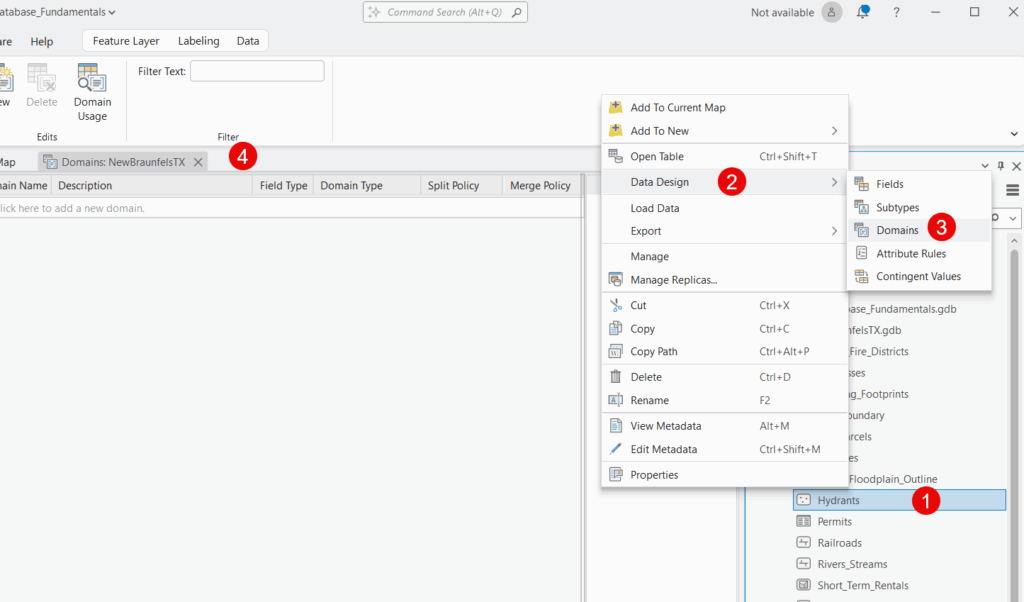
Step 1: Open the Feature Class Properties
- In the Catalog pane, navigate to your file geodatabase
- Expand the geodatabase and find the Hydrants feature class
- Right-click on the feature class and select Data Design | Domains
Step 2: Create a New Domain
- Click the “Click here to add a new domain” item to create a new domain.

- A new domain row will appear in the table

Step 3: Configure the Domain Properties
Enter the following information for the Condition domain:
Domain Name: AssetCondition
- Use descriptive names without spaces
- CamelCase or underscores work well
Description: Physical condition assessment of the hydrant asset
- Provide clear descriptions so other users understand the domain’s purpose
Field Type: Text
- Must match the field type where you’ll apply this domain
Domain Type: Coded Value
- Select this for our list of predefined choices
Split Policy: Default value
- Leave as default for most cases
Merge Policy: Default value
- Leave as default for most cases

Step 4: Add Coded Values
Now we’ll add the specific values users can choose from:
- In the Coded Values section, click the row to begin adding values
- Enter the first code and description:
- Code:
Excellent - Description:
No visible defects, functions perfectly
- Code:
- Click Add again for each additional value:
- Code:
Good| Description:Minor wear, fully functional - Code:
Fair| Description:Moderate wear, functions adequately - Code:
Poor| Description:Significant deterioration, marginal function - Code:
Critical| Description:Severe deterioration, requires immediate attention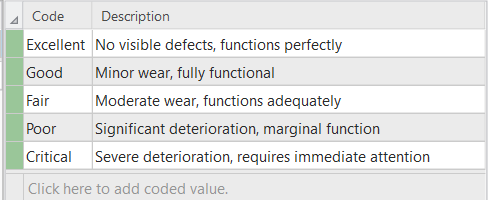
- Code:
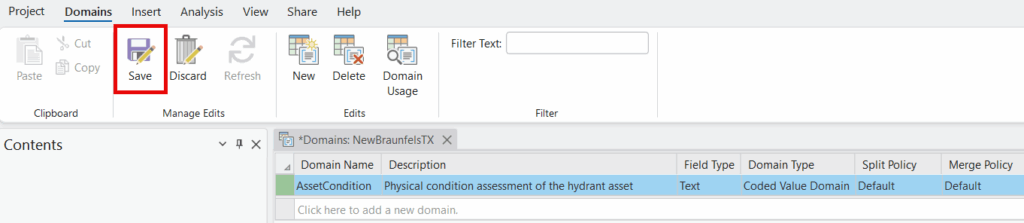
Step 5: Save the Domain
On the Domains context tab click the Save button. The AssetCondition domain is now available for use in your geodatabase.
Create Additional Coded Value Domains
Repeat Steps 2-5 to create two more coded value domains:
Domain #2: OperationalStatus
- Description: Current operational status of the hydrant
- Field Type: Text
- Domain Type: Coded Value
- Coded Values:
Active– In service and functioningInactive– Temporarily out of serviceOut of Service– Not functional, needs repairAbandoned– Permanently decommissioned
Domain #3: ServiceDistrict
- Description: Water service district where the hydrant is located
- Field Type: Text
- Domain Type: Coded Value
- Coded Values:
North– North DistrictSouth– South DistrictEast– East DistrictWest– West DistrictCentral– Central District
Step-by-Step: Creating a Range Domain
Now let’s create a range domain for the Installed_Date field to prevent invalid dates.
Step 1: Add a New Domain
- Still in the Domains tab of your feature class properties
- Add a new row.
Step 2: Configure the Range Domain Properties
Domain Name: ValidInstallDateRange
Description: Valid date range for hydrant installation dates
Field Type: Date
- Important: Must match the field type
Domain Type: Range
- Select Range instead of Coded Value
Split Policy: Default value
Merge Policy: Default value
Step 3: Set the Minimum and Maximum Values
- In the Minimum Value field, enter:
1/1/1900- Hydrants weren’t installed before 1900
- In the Maximum Value field, enter:
12/31/2025- Adjust this to the current year
- Prevents future dates from being entered
Step 4: Save the Domain
Click OK to save the ValidInstallDateRange domain. Your Domains tab should now appear as seen below.

Step-by-Step: Applying Domains to Fields
Now that we’ve created our domains, we need to apply them to the appropriate fields in our Hydrants feature class.
Step 1: Open the Fields View
- In the Catalog pane, navigate to your Hydrants feature class
- Right-click on Hydrants and select Data Design > Fields
- The Fields view opens, showing all fields in a table format
Step 2: Apply the Condition Domain
- Locate the Condition field in the Fields view
- In the Domain column for that row, click the dropdown
- Select AssetCondition from the list
- The domain is now applied to this field
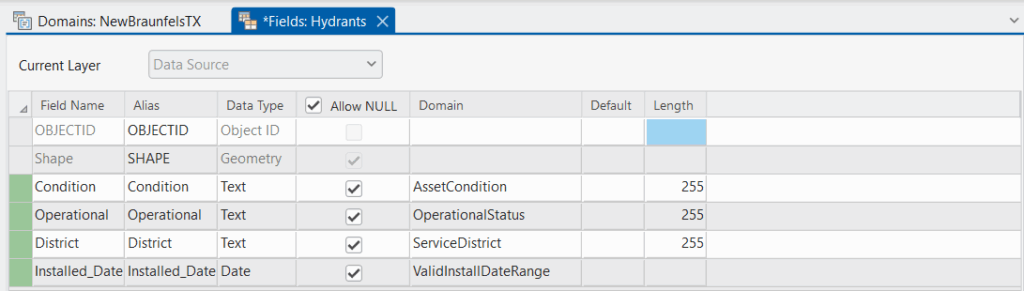
Step 3: Apply Remaining Domains
Repeat Step 2 for each field:
- Operational field → OperationalStatus domain
- District field → ServiceDistrict domain
- Installed_Date field → ValidInstallDateRange domainThe Field view should now appear as seen below.
Step 4: Save Your Changes
- Click the Save button on the Fields ribbon
- Close the Fields view
Your domains are now active and will control data entry for these fields!
Testing Your Domains
Let’s verify that your domains are working correctly.
Test Coded Value Domains
- Open a map and add the Hydrants layer
- In the Contents pane click the List by Editing button and make sure the Hydrants layer is editable
- Click the Edit tab on the ribbon
- Click Create to open the Create Features pane
- Select Hydrants and click on the map to create a new point
- In the attribute table or Attributes pane, try to edit the Condition field
- You should see a dropdown menu with only the available descriptive values:
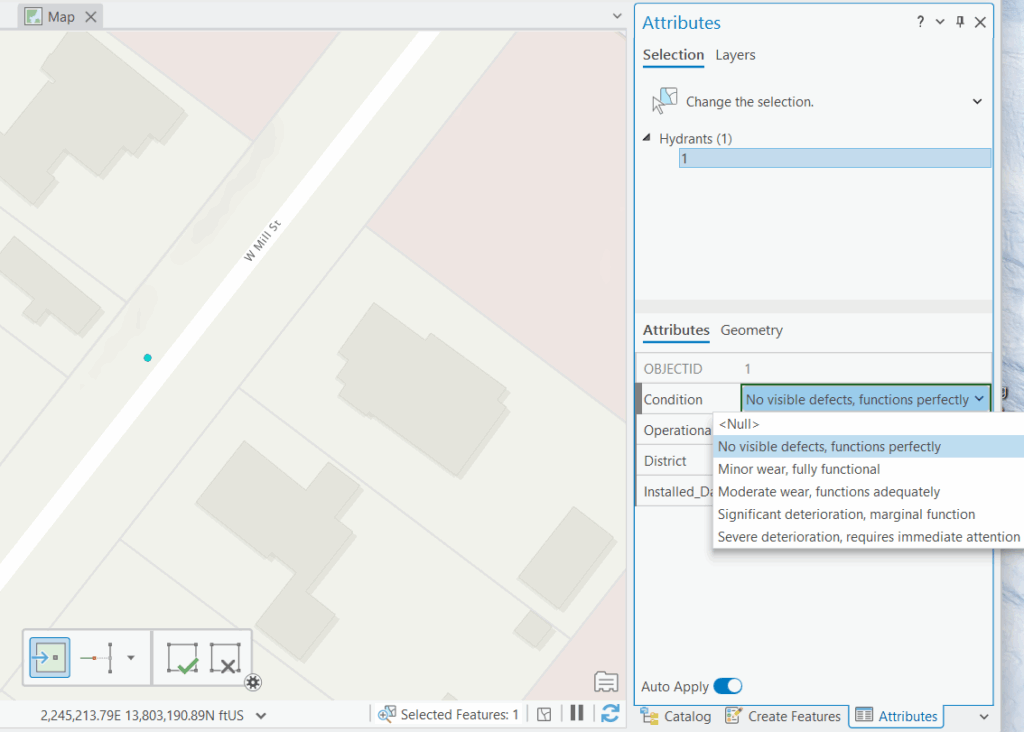
Try this for the Operational and District fields as well. You should only be able to select from the predefined values—no typing allowed!
Test Range Domain
- Try to edit the Installed_Date field on a hydrant
- Enter a date before 1/1/1900 (like
12/31/1899) - When you try to save, you should see an error message preventing the invalid date
- Try entering a future date (like
1/1/2030) - Again, you should see an error preventing this invalid value
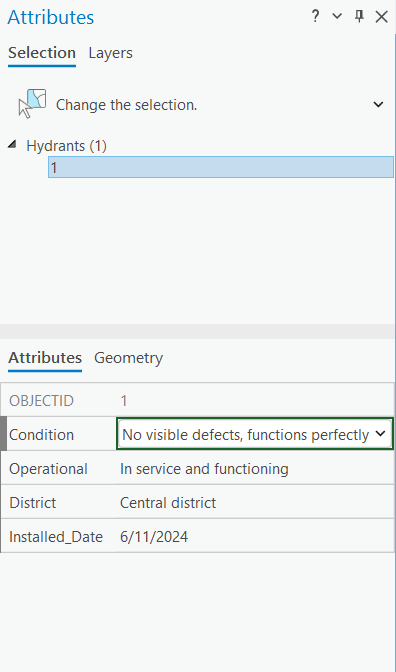
If you receive error messages when entering invalid values, congratulations! Your domains are working correctly.
When you’re done you should see something similar to the screenshot below.
Best Practices for Working with Domains
1. Plan Your Domains Before Creating Them
Take time to identify which fields need domains and what values make sense. Consult with staff who will actually use the data—they often have insights into needed values you might miss.
2. Use Descriptive Domain Names
Names like AssetCondition are better than Domain1. Future users (including yourself) will appreciate clear naming.
3. Write Meaningful Descriptions
The description field helps others understand the domain’s purpose. Don’t skip this—it’s documentation that stays with your data.
4. Keep Coded Values Consistent
Within a domain, use consistent capitalization and naming patterns. Don’t mix “out of service” with “Out Of Service” and “Out_Of_Service”.
5. Consider Subtypes with Domains
For complex datasets, you can use subtypes combined with domains to apply different domain rules to different feature types. This is an advanced technique covered in our comprehensive geodatabase training.
6. Document Your Domain Logic
Keep a spreadsheet or document explaining why you chose specific domain values and ranges. This helps with long-term data management and staff training.
7. Review and Update Domains Periodically
As your organization changes, your domain values might need updates. For example, if your city annexes new territory, you might need to add a “Northeast District” to your ServiceDistrict domain.
8. Test Before Rolling Out
Always test domains with a few records before applying them to large datasets. It’s much easier to fix domain issues early than after thousands of records have been created.
Common Issues and Solutions
Issue: “Domain not appearing in dropdown”
Solution: Make sure the field type in your feature class exactly matches the field type specified in the domain. A Text field won’t show domains designed for Long Integer fields.
Issue: “Can’t delete a domain”
Solution: Domains can’t be deleted if they’re currently assigned to any fields. First remove the domain from all fields, then you can delete it.
Issue: “Need to add a new value to an existing domain”
Solution: Right-click your geodatabase > Properties > Domains tab > Select the domain > Add the new coded value > OK. The new value is immediately available.
Issue: “Existing data violates new domain rules”
Solution: Domains only restrict new data entry—they don’t validate existing data. Use the Validate Features tool or manually review and correct existing records before applying domains.
Conclusion
Domains are one of the most valuable tools for maintaining data quality in ArcGIS Pro file geodatabases. By restricting field values to predefined lists or valid ranges, you prevent data entry errors before they happen, saving countless hours of cleanup work and ensuring your spatial database remains accurate and reliable.
The concepts we’ve covered—coded value domains for predefined lists and range domains for numeric/date limits—apply across all types of GIS data, from utilities infrastructure to environmental monitoring to land management. Once you understand how to create and apply domains, you’ll find uses for them in virtually every geodatabase you build.
Take Your Geodatabase Skills Further
Check out our comprehensive training course: Introduction to the Geodatabase for ArcGIS Pro
This hands-on course covers everything you need to design, build, and manage professional-quality file geodatabases, including:
- Geodatabase fundamentals and architecture
- Creating and managing file geodatabases, feature datasets, feature classes, tables, domains, and subtypes
- Best practices for geodatabase design
- Real-world exercises and examples
Plus, save 20% on all training through December 31st, 2025! Use code holiday at checkout.
