
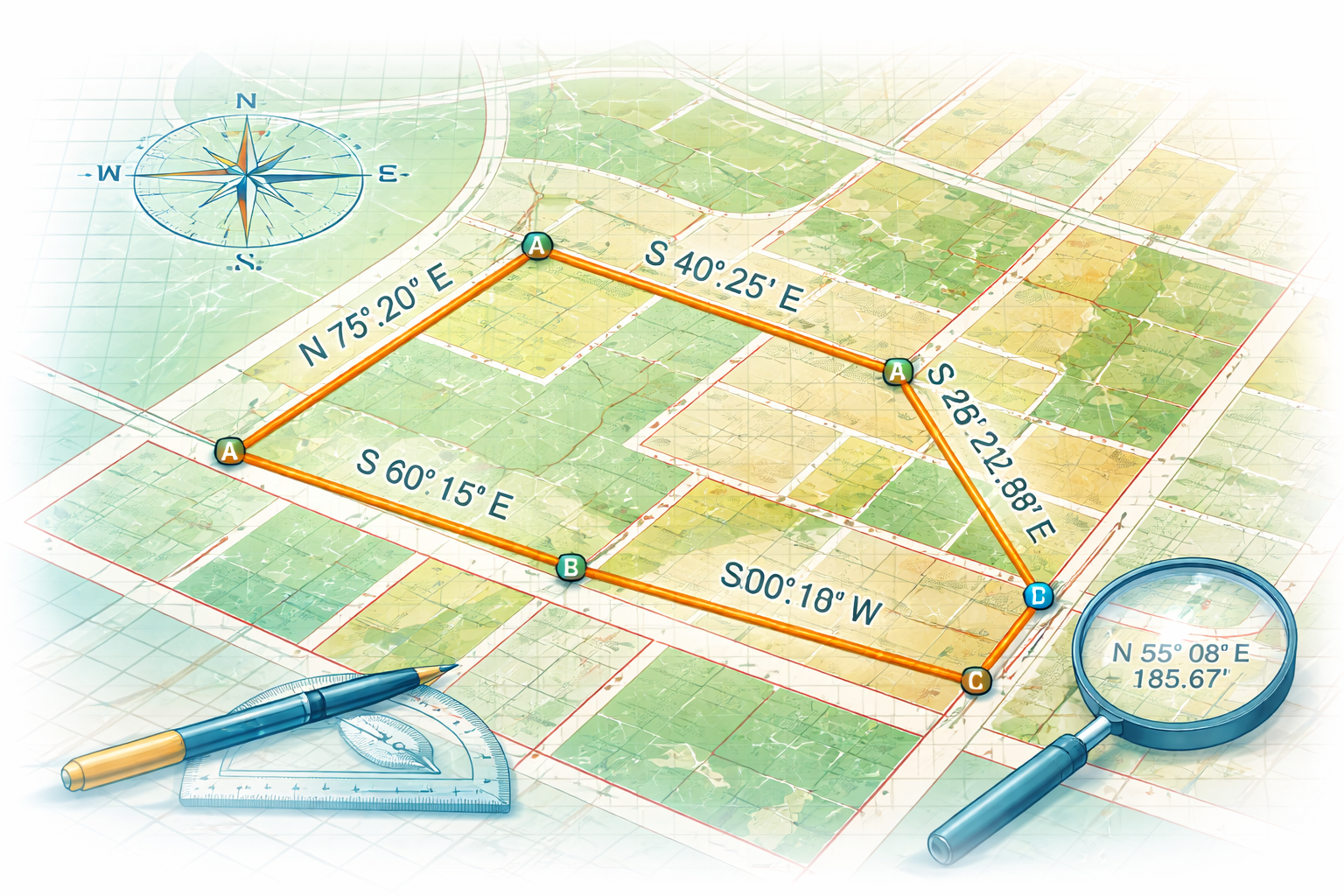
When using Coordinate Geometry (COGO) tools in ArcGIS Pro, projection choice influences how distances and bearings are interpreted, where linework is placed, and how boundary areas are calculated. Because projections define how the curved surface of the earth is represented on a flat map, they play a direct role in the positional accuracy and measurement behavior of GIS data. Understanding why projections matter—and how to choose an appropriate one—helps ensure COGO editing behaves predictably without adding unnecessary complexity to the workflow.
What is a Projection and why does COGO need one?
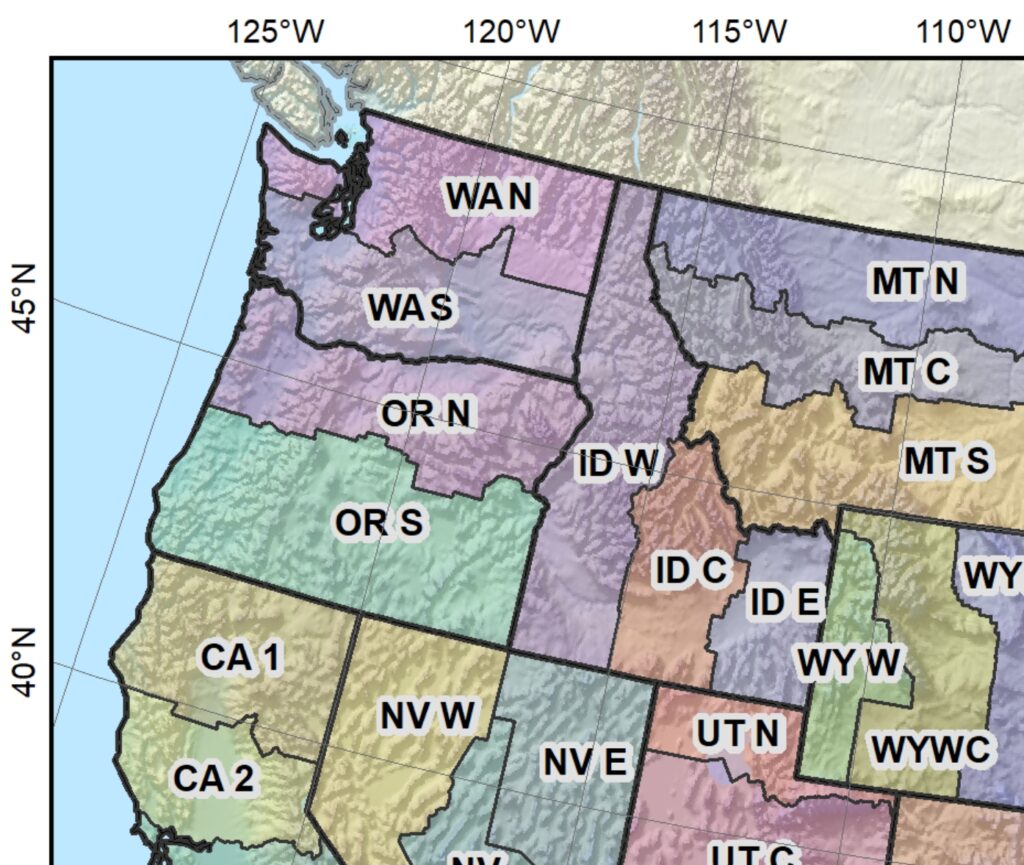
A projection is a method used in GIS to represent geographic locations in a flat, two-dimensional coordinate system. In simple terms, it converts the curved surface of the earth into a flat surface that can be displayed, measured, and analyzed on a computer screen.
Projected coordinate systems store locations using linear x and y coordinates, expressed in units such as feet or meters. These linear units allow distances, directions, and areas to be calculated.
Common examples of projected coordinate systems used for COGO work include:
-
State Plane Coordinate Systems
-
locally defined projected coordinate systems designed for a specific area
In ArcGIS Pro, a projected coordinate system is required to enable COGO on a line feature class and to use COGO construction tools, including the Traverse tool.
Why can’t COGO editing be done in a Geographic Coordinate System?

Image from UBC Library
A geographic coordinate system (GCS) stores locations using latitude and longitude. These values are angular measurements expressed in degrees, not linear units such as feet or meters.
Common examples of geographic coordinate systems include:
-
WGS 1984
-
WGS 1984 Web Mercator (Auxiliary Sphere)
In these systems, coordinates typically look like this:
-
Longitude: -116.123456
-
Latitude: 43.987654
These values describe a location, but they do not represent consistent linear distances. Because of this, COGO tools in ArcGIS Pro cannot be used with data stored in a geographic coordinate system.
As a result:
-
COGO cannot be enabled on line feature classes stored in a geographic coordinate system
-
COGO construction tools and the Traverse tool will not function on non-projected layers
To use COGO in ArcGIS Pro, both the map and the editable line feature class must use a projected coordinate system where coordinates are stored in linear units.
How does projection choice affect COGO results?
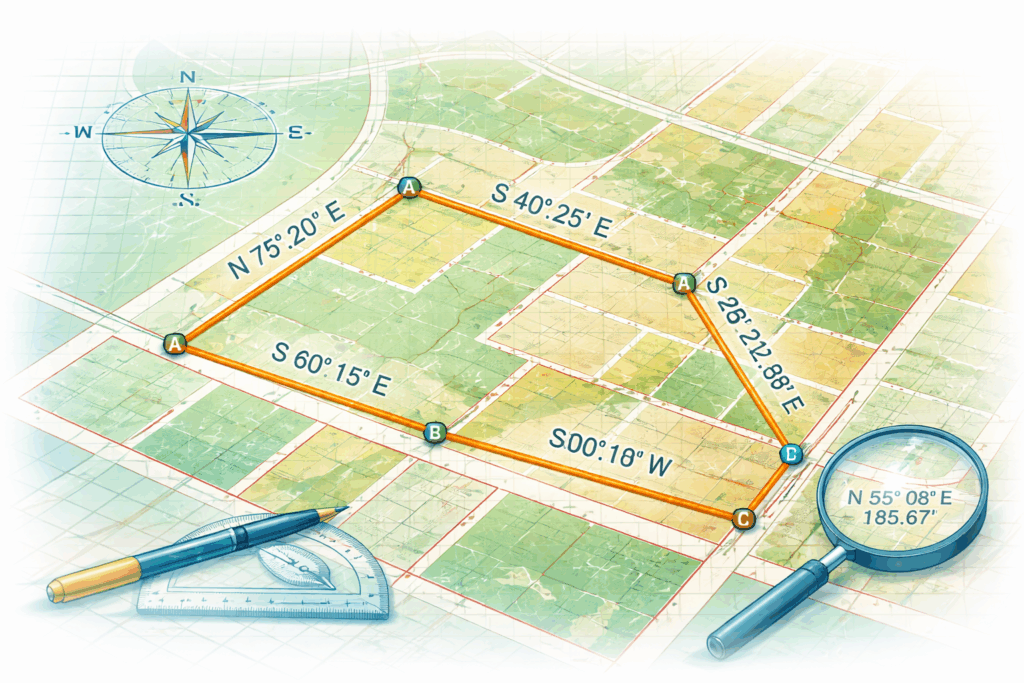
Projection choice affects how distances, directions, and areas are represented within a GIS dataset. Even when the same bearings and distances are entered using COGO tools, different projections can produce slightly different geometry because each projection handles distortion differently.
Some projections are designed to preserve distance more closely within a limited area, while others prioritize direction or overall shape. If a projection is poorly suited to the location or extent of the data, distortion can affect how linework aligns, how distances compare across features, and how areas are calculated.
In COGO workflows, these effects become more noticeable when:
-
features span a larger geographic area
-
distance comparisons are made across multiple features
-
linework is reviewed against external reference data
-
area calculations are used for reporting or analysis
Using a projection that fits the geographic area and scale of the work helps keep COGO results internally consistent. The goal is not to eliminate distortion entirely, but to manage it in a way that aligns with how the data will be used.
How do I choose the right projection?
Choosing a projection for COGO work starts with understanding where the data is located and how large the area of interest is. Projections are designed to perform best over specific geographic extents, and using one that aligns with the project area helps manage distortion.
For many local government workflows, State Plane coordinate systems are often an acceptable choice because they are designed to minimize distortion within defined geographic zones. This makes them well suited for county- or municipality-scale datasets where distances, directions, and area calculations need to behave predictably across a relatively limited extent.
Consistency across the dataset is important. All layers used for COGO editing should share the same projected coordinate system so distances, directions, and areas behave the same way throughout the workflow.
Projection choice should also reflect how the data will be used. For workflows focused on general reference or visualization, some distortion may be acceptable. For workflows that involve closer alignment with measured values or internal comparison of distances and areas, selecting a projection designed for local accuracy is often more appropriate.
There is often more than one reasonable projection choice for a given project. Selecting a projection intentionally, applying it consistently, and documenting the decision helps set clear expectations for how COGO results should be interpreted.
How do I view and apply projections in ArcGIS Pro?
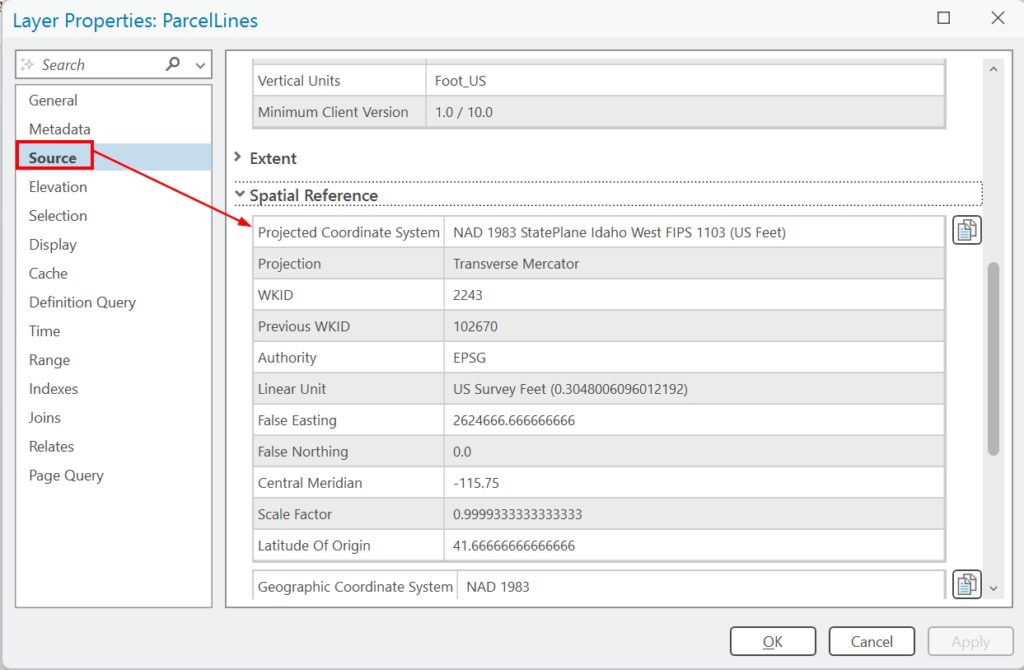
Before using COGO tools, it’s helpful to confirm what coordinate system your data is using. In ArcGIS Pro, you can view the projection of a layer by opening the layer’s properties and checking the coordinate system listed under the Source information. This tells you whether the data is stored in a geographic or projected coordinate system and what units it uses.
The map itself also has a coordinate system. The map’s projection controls how layers are displayed in the view, and ArcGIS Pro will project layers on the fly to match the map. This can change the visual appearance of the data when the map projection is changed. However, this visual change does not mean the underlying data has been reprojected. It is possible for a map to be projected while individual layers remain stored in a different coordinate system.
If your data is stored in a geographic coordinate system or in a projected coordinate system that is not appropriate for COGO editing, the data must be projected. This is done using the Project geoprocessing tool, which creates a new dataset stored in the target projected coordinate system.
Once the data is stored in a projected coordinate system, COGO can be enabled on line feature classes and COGO construction tools can be used as expected.
Projection decisions are best handled before beginning COGO editing. Reprojecting data after geometry has been created can introduce inconsistencies if not managed carefully.
