
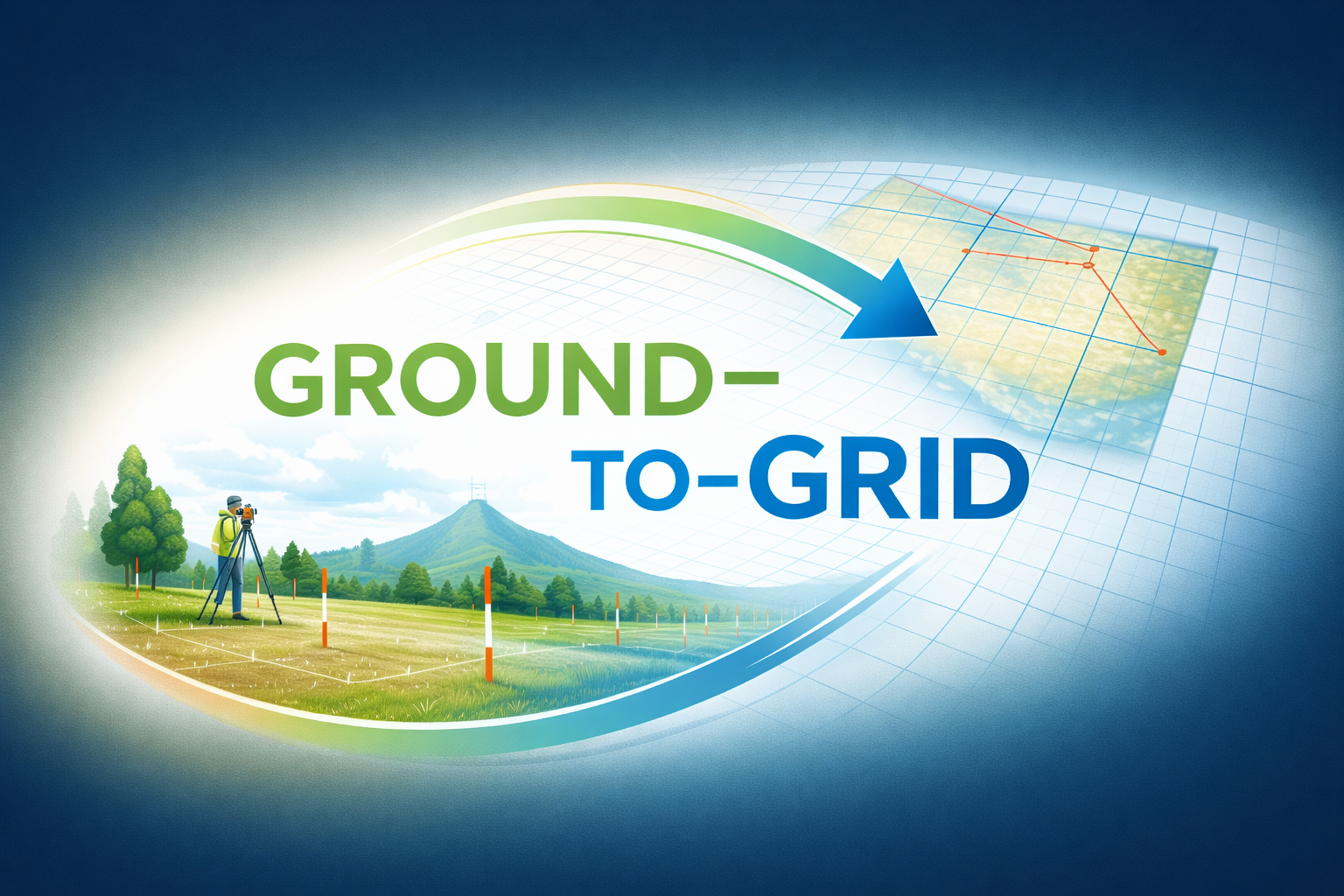
When working with Coordinate Geometry (COGO) in ArcGIS Pro, it helps to separate two ideas that sound similar but behave differently: ground measurements and grid measurements. Survey and engineering documents often describe distances “on the ground,” while GIS stores and calculates distances in a projected coordinate system (a “grid”). Ground-to-Grid is the setting that helps you reconcile those two measurement spaces when it’s appropriate.
What does ‘Ground’ mean?
Image by Cafeymas from Pixabay
Ground distance means the distance along the earth’s surface where the feature exists in the real world. If you walk the line with a measuring wheel, measure it with survey equipment, or derive it from field observations, you are working with ground distance.
Surveyors and engineers commonly work in ground measurements because their work is tied to what exists physically:
-
property corners and monuments
-
road centerlines and right-of-way boundaries
-
subdivision boundaries and easements
-
construction layout and design geometry
In this context, a distance like “150.00 feet” is intended to represent 150 feet on the ground, not “150 feet in a map projection.” That’s a key reason why survey-based legal descriptions often feel very “real-world” in how they describe bearings and distances.
One important note: not every legal description is survey-derived. Some are created or updated using GIS data or digitized boundaries. In those cases, the “distance” might be coming from GIS calculations rather than field measurement. In these instances there is no need to correct measurements using a Ground-to-Grid tool. That’s why it helps to understand the source before you decide how to handle Ground-to-Grid.
What does ‘Grid’ mean?

Grid distance is the distance measured in your GIS coordinate system after the earth has been “flattened” onto your screen using a projected coordinate system. A projection turns a curved surface into a flat map so the software can store coordinates (x, y) and perform calculations. The result is a grid-based coordinate space where:
-
coordinates are planar (flat)
-
distance calculations are performed on that plane
-
direction and distance are based on the projection’s rules
The tradeoff is that any projection introduces some distortion. The amount and type of distortion depend on:
-
which projection you are using
-
where your project is located within that projection
-
how far you are from the lines or areas of “best fit” for that projection
This is why the same “ground” distance can be slightly different when measured in “grid” space. In many everyday GIS mapping tasks, that difference may not matter much. In COGO editing—especially when you are trying to match a survey or engineering document—the difference can become noticeable and confusing if you aren’t expecting it or don’t understand it. When using GIS to visualize features on the ground, most agencies expect some amount of error because of this difference and it’s up to each agency to decide how much error is acceptable.
When Ground-to-Grid is enabled in ArcGIS Pro, distances entered during COGO editing are adjusted using a distance factor (scale factor). In some workflows, this factor is set manually based on project setup or organizational guidance. In other workflows, the scale factor can be calculated dynamically as you work, based on how ground and grid measurements relate within the project.
In both cases, you continue to enter distances exactly as they appear in the legal description. ArcGIS Pro applies the adjustment as the geometry is created so that ground-based measurements can be represented consistently within the project’s coordinate system.
The purpose of Ground-to-Grid is not to require users to perform projection calculations, but to provide a controlled way to reconcile differences between ground measurements and grid-based GIS geometry when the source data calls for it.
When to use Ground-to-Grid
Ground-to-Grid changes how closely GIS geometry reflects ground-based measurements, but whether that difference matters depends on how the data will be used. It does not make GIS data survey-grade, and it is not required for all COGO workflows.
For many GIS workflows, small differences between ground and grid distances are acceptable and expected. Agencies that use GIS primarily for visualization, reference, planning, or general mapping often communicate these expectations through metadata or disclaimers. In these environments, applying Ground-to-Grid may not be necessary because users do not require close alignment between COGO input and the GIS geometry.
Ground-to-Grid becomes more relevant when the results of COGO editing are expected to be consistent with ground-based reference measurements — for example, when preparing geometry that will be compared directly to survey or engineering documents, or when distance consistency across multiple datasets matters for analysis or quality evaluation. In such workflows, reconciling the measurements entered from a document with the grid distances stored in GIS helps align the representation with the intent of the source data.
The decision to use Ground-to-Grid should be based on how the GIS data will be used and what level of consistency between source measurements and GIS geometry is expected. In many cases, especially for visualization or general reference, choosing not to apply Ground-to-Grid is an appropriate and valid choice.
How is Ground-to-Grid applied in ArcGIS Pro?
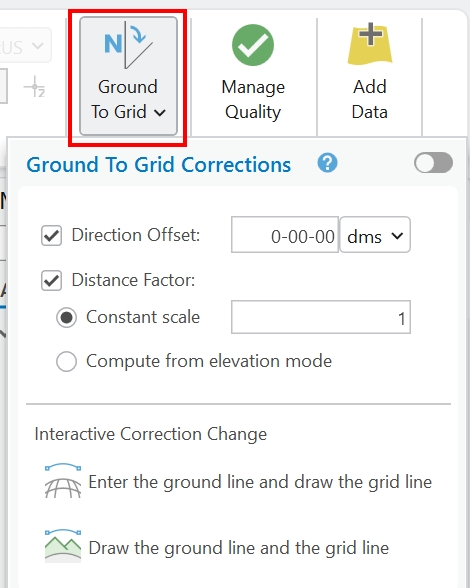
In ArcGIS Pro, Ground-to-Grid is applied as an editing setting that affects how distances and directions entered during COGO workflows are handled. It does not change existing geometry automatically. Instead, it influences how new geometry is created or how existing geometry is updated when COGO tools are used.
Ground-to-Grid settings are configured at the project level and are applied during editing operations such as:
-
entering COGO dimensions with construction tools
-
creating lines with the Traverse tool
-
updating COGO values after geometry edits
When Ground-to-Grid is enabled, ArcGIS Pro adjusts the distances and directions you enter using the configured correction values before storing the geometry in the map’s coordinate system.
Ground-to-Grid can be turned on or off depending on the needs of the project. Some projects enable it only during specific editing tasks, while others leave it disabled entirely. The setting should be chosen deliberately and documented so that editors understand how measurements are being handled.
Because Ground-to-Grid affects how measurements are interpreted, it is best decided early in a project or before beginning major COGO editing. Changing the setting mid-workflow can lead to inconsistent results if it is not managed carefully.
